2.4 vs 5 GHz WiFi Frequency Bands – Which Is Better?
Short answer – it depends on your situation. When hunting for a WiFi signal, or when setting up a dual band router, you might have seen the option to connect or transit either a 2.4 vs 5 GHz WiFi frequency band. Both have advantages and disadvantages, but the major benefit to 5Ghz is less interference from other devices, which use the same frequency. So why are these two frequency bands provided? Which WiFi frequency will give you the best signal or connection speed from your dual band router?
Video: 2.4 vs 5 GHz WiFi – What Is The Difference?
We’ve found a nice explainer video for you from PowerCert Animated Videos to give you all the information you need about these two different WiFi frequency bands. Watch the short 5 minute video below to get answers to common questions about these WiFi frequencies.
Video transcript: Hello everyone. Have you ever purchased a new WiFi router and you noticed that the router has both 2.4 GHz and 5 GHz frequency bands or maybe your existing router has both of them? Have you ever wondered why some routers have these dual bands? So that’s what we’re going to talk about in this video.
Now a frequency band is how wireless data is transmitted between devices. These bands are radio waves that carry the data and these bands are either 2.4 GHz or 5 GHz. Now a lot of WiFi routers will only transmit one of these bands, which would be the 2.4 band and that’s because it’s the most common frequency and these are called single-band routers. But a lot of newer WiFi routers will transmit both the 2.4 and 5 GHz bands and these are called dual-band WiFi routers.
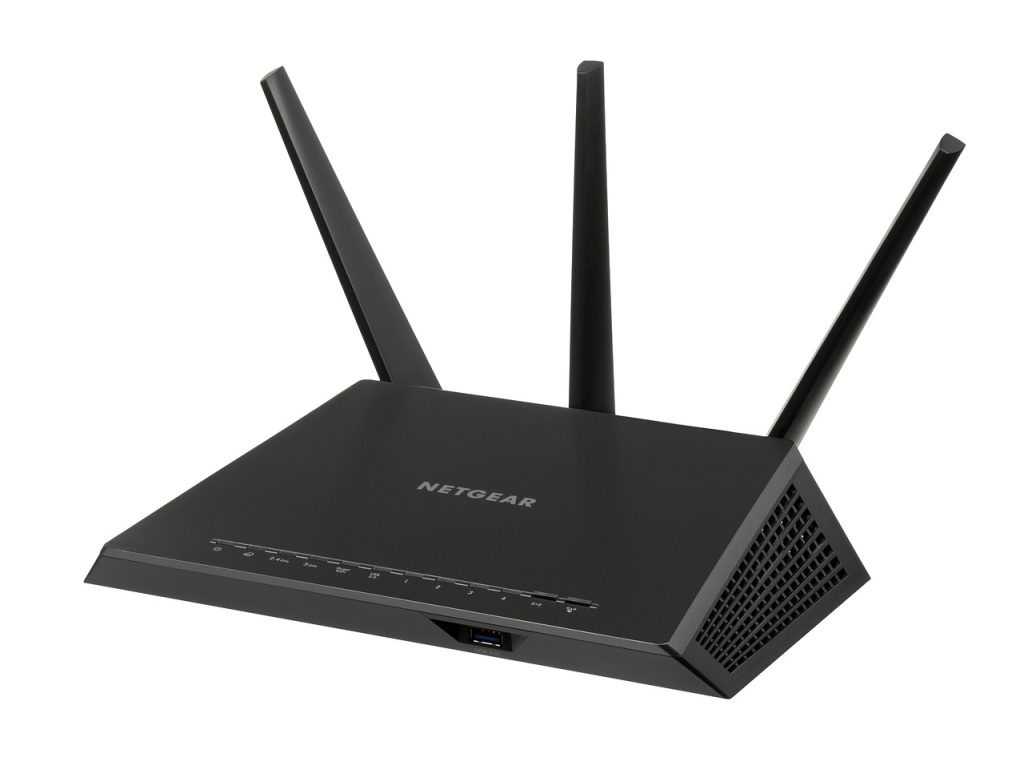
NETGEAR Nighthawk Dual Band WiFi Router
Now the 2.4 band works pretty well. It’s the standard band. But the problem is that it’s not just a standard band that’s used in WiFi routers. It’s also the standard band that’s used in a lot of other devices. Things like microwave ovens, cordless phones, Bluetooth devices and wireless cameras all use the 2.4 GHz band and this became a problem.
What Is The Purpose Of The 5GHz Frequency Band?
Because of the fact that so many other devices use the 2.4 band, the signal became overcrowded and was causing a lot of interference with WiFi signals and when this happens, it slows down the WiFi network speed and sometimes could cause you to lose connection to the WiFi router.
That is why the 5 GHz band was added. The 5 GHz band is a newer band and so it’s not as commonly used as the 2.4. It’s used by fewer devices and because it’s used by fewer devices, the 5 GHz is not as crowded. So there is no interference or minimal interference. Using the 5 GHz would relieve the problem related to slow network speeds and connection drops that will be caused by interference from other devices. Another reason why the 2.4 is more vulnerable to interference is because of the difference in wireless channels. Now if you’re not familiar with what a wireless channel is, a wireless channel is just a way to fine-tune and alter a frequency. Sometimes you might need to change to a different channel if you are experiencing interference from different wireless devices and changing to a different channel will give you that ability.
The 2.4 GHz band has 11 channels to choose from. But of these 11 channels, only 3 are non-overlapping. So basically you have 3 solid channels to choose from. But the 5 GHz has more channels. It has 25 non-overlapping channels. Some other differences between the 2.4 and 5 GHz band is the speed and the range that they cover. The 2.4 GHz band transmits data at a slower speed than the 5 GHz. But it does have a longer range than the 5 GHz. The 5 GHz band transmits data at a faster speed than a 2.4. But it has a shorter range. The 5 GHz has a shorter range because it has a higher frequency and higher frequencies have a harder time penetrating solid objects such as floors and walls in a building.
As you can see on this illustration, this dual band WiFi router is broadcasting a 2.4 GHz band which is the green color and it’s also broadcasting a 5 GHz band, which is the red color. So as you can see, the 2.4 band has a longer range and the signal can cover most of this building and it can also penetrate the second floor and the walls. But the 5 GHz band has a shorter range. The signal doesn’t penetrate the second floor or the walls, which limits its range inside a building.
So The Question Is – Which Band Do You Want To Actually Use?
And that really depends on your situation. They both have their advantages and disadvantages. The advantage of a 2.4 GHz is that it has a farther range and it can penetrate solid objects better. However the disadvantage that it has, is that it’s more vulnerable to interference. That’s because so many other devices use the same band and it’s also slower than the 5 GHz.
What Are The Advantages / Disadvantages Of Using 5Ghz?
The advantage of 5 GHz is that it has a higher transfer speed and it’s less vulnerable to interference. But at the same time, it does have a shorter range. And it has a harder time penetrating through solid objects. If you’re interested in getting a dual band WiFi router, I will put a link in the description of this video below. This is of a dual band WiFi router that I personally recommend. Thank you for watching.
Update: There’s a new kid on the block and it offers better coverage for multiple devices on a single WiFi network and much faster speeds. Read more about how everything changes with the latest WiFi 6 standard and compatible access points.
About Fastmetrics, Inc. Building & Business ISP
Since 2002, Fastmetrics is the Bay Area’s only dedicated business ISP. We provide telecommunication services in California and the San Francisco Bay Area. Reliable service – backed by better live and local support. From install to 24-7 proactive monitoring, get treated like a VIP customer. Not a number by a faceless call center. We specialize in managed business internet and phones, dedicated high speed business fiber internet, business WiFi, SIP voice solutions / UCaaS and managed network services. We are a Microsoft and Cisco Meraki Partner. Our team are Certified Cisco Specialists, Ubiquiti Enterprise Wireless Accredited and Polycom Authorized Solution Advisors. We take care of your business network, so you can focus on growth.
For most small to medium sized businesses, a business WiFi network has become the order of the day. Running cables throughout an office space or retail location is not only time consuming, but costly if you need help to do it. A business wireless network is cost effective and also a lot less cumbersome to setup.
For a small business, a wireless network offers many benefits, the most prominent being;
Easy to setup and access
Scaling is easier and faster
Flexibility for employees
Ok, so let’s say that you do understand the usefulness of a reliable wireless network and are sold on upgrading to a wireless network. However if you do not have the experience, building one can be a little tricky. It is definitely not as simple as plugging in your router and connecting your device. Here are a few tips that will surely help you build the right network for your business needs.
1) PLAN YOUR NETWORK FOR GROWTH
One of the common mistakes that businesses make is not understanding the importance of access points. It is quite common that the network load is not considered when determining the number of access points required. You may think in terms of the number of users but users rarely operate a single device. Each user usually has multiple devices such as a laptop, smart phones, and a tablet. Additionally, other office devices must be considered such as printers, video conferencing equipment, and security cameras. It is therefore important to err on the side of caution by installing multiple access points.
This helps not only in preventing network congestion but also prepares you for additional network load coming from new hires in times of growth. Our rule of thumb is one enterprise-grade wireless access point every 1000 square feet. And don’t forget to professionally mount them on the ceiling in optimized locations.
2) GET BACKUP DUAL INTERNET ACCESS
Without high speed internet, your whole office probably comes to a stand still. You need internet for communicating with your customers, using web tools, research, reading this blog and much more. Unfortunately, internet service can go down from time to time. And when it’s your ISP that goes down, you need the peace of mind that comes with having a backup connection.
We are so much dependent on the internet that businesses cannot function with service disruptions. However, we can safeguard against this by signing up with two different internet providers. This way you have a fall back option when one of the ISPs goes down. Using dual internet access does not have to be a costly affair. You can have a more dependable ISP as your primary and keep a lower-tier plan from another provider as a backup. If the idea of managing two separate internet services is intimidating, ask for professional help to find a manageable solution.
3) CHOOSE THE RIGHT HARDWARE
The most important factor contributing to a reliable business WiFi network is hardware. It is important to understand that there is a limited spectrum available that is shared among various devices. This can be influenced by external interference, such as a neighbors’ wireless network. Choosing the right hardware should be top of your list, as it can help mitigate the influence of external factors that cause WiFi issues, outside of your control. (Fastmetrics techs use and recommend Ubiquiti or Cisco Meraki hardware, depending on Wi-Fi network needs).
Wave 2 802.11ac have become the norm when it comes to access points. Getting anything other than 802.11ac would not make any sense today. The access points come with 1×1, 2×2, 3×3, 4×4 radio/antenna chain. The 1×1 supports one receive stream and one transmit stream, while the 2×2, 3×3. and 4×4 support 2, 3 and 4 streams respectively. Therefore investing in a 4×4 is a worthwhile investment and will support your future expansions.
Update: this has now changed with the latest WiFi standard; 802.11ax (WiFi 6) compatible access points, such as the Cisco Meraki MS355-24X2.
4) CHOOSE THE RIGHT CABLES
A solid underlying wired network goes a long way in ensuring a fast wireless network. Your cables are responsible for delivering sufficient bandwidth to your access points without which your WiFi network will become sluggish. Using the recent cable standards such as CAT6 for your LAN wiring would be a good investment. This also allows you to connect certain devices such as printers, IP cameras, etc to the wired network thereby freeing the spectrum from wireless dependent devices such as laptops, and mobiles devices. Also plan on running two cables to each wireless access point because current and future standards will need the extra wired bandwidth.
5) SETUP GUEST WIFI
If you have customers, or other visitors that frequent your office, they would most likely want to use your WiFi to connect to the internet. If your network does not have a separate network for guests, it can pose a serious threat to your network security. Business grade access points on the other hand support multiple wireless networks also called SSID (service set identifier). This gives you significant flexibility as well as security. You can now give guests internet access without giving them access to your internal network. These SSIDs can also be assigned different policy, encryption, authentication, etc. in order to ensure added level of security.
6) CHOOSE THE RIGHT CHANNEL FOR YOUR BUSINESS WIFI NETWORKS
When you are setting up business wireless networks, you probably are in a great rush to finish things off. You may therefore be tempted to use the default channel on your router. This may work well if you are doing this for your home. However, if your office is located in a commercial or business area then you will be fighting with your neighbors for the same airspace, meaning frequent interference that hampers your wireless network. You can easily mitigate this by changing the channel when setting up your device.
Business grade access points also come with the capability to monitor neighboring wireless networks and dynamically manage channels. Having such a capability can be a great asset if you are working in high density WiFi areas.We find that if you’re constantly having to tinker with your channels manually, then you should probably upgrade to a more enterprise-grade option that can handle this for you automatically.
7) DON’T IGNORE THE DUAL BAND
Your router probably offers simultaneous dual band. This means you have 2.4 Ghz and 5 GHz bands available for use. It is advisable to use the 2.4 GHz band for IoT devices while reserving the 5 GHz band for laptops. This can help keep the 5 GHz band less congested. Further, as the 5 GHz band has shorter range, it allows you to use additional access points without the risk of interference in high density airspace. Most enterprise WiFi equipment will simultaneously use the 2.4 GHz and 5 GHz bands and will automatically steer your devices to the best option available.
Building robust and future ready business WiFi networks are quite a challenge, but it is certainly worth taking on. If you plan the entire project, use the right hardware and configurations, it will ensure that you have a fast, versatile, and capable network equipped for the unexpected. This is a crucial business requirement and if you have even a sliver of apprehension about your ability to set up and roll out a wireless network at your workplace, it is advisable to get professional help.
If you found this useful, you should also check out 5 IT Best Practices for Growing Businesses that is a great place for tips for managing the IT side of things for your business.
About Fastmetrics, Inc. Building & Business ISP
Since 2002, Fastmetrics is the Bay Area’s only dedicated business ISP. We provide telecommunication services in California and the San Francisco Bay Area. Reliable service – backed by better live and local support. From install to 24-7 proactive monitoring, get treated like a VIP customer. Not a number by a faceless call center. We specialize in managed business internet and phones, dedicated high speed business fiber internet, business WiFi, SIP voice solutions / UCaaS and managed network services. We are a Microsoft and Cisco Meraki Partner. Our team are Certified Cisco Specialists, Ubiquiti Enterprise Wireless Accredited and Polycom Authorized Solution Advisors. We take care of your business network, so you can focus on growth.
The Internet serves a variety of purposes today. Due to this, the use of VPN services has become more important. From researching specific information to streaming movies, TV shows and listening to music, we use Internet service for everything conceivable. People are totally dependent on Internet connectivity, to go about their daily lives.
However, the more we use the World Wide Web or stream content online, the more we expose ourselves to outside interference and dangers. These dangers include hackers, censorship, surveillance, fraud and exposing our personal details online. Using the internet without taking precautions can make you susceptible to countless cybercrimes, such as hacking. Potentially, this leads to identity theft or worse – fraud or loss of money. To get protection, this is where a VPN can come in very useful.
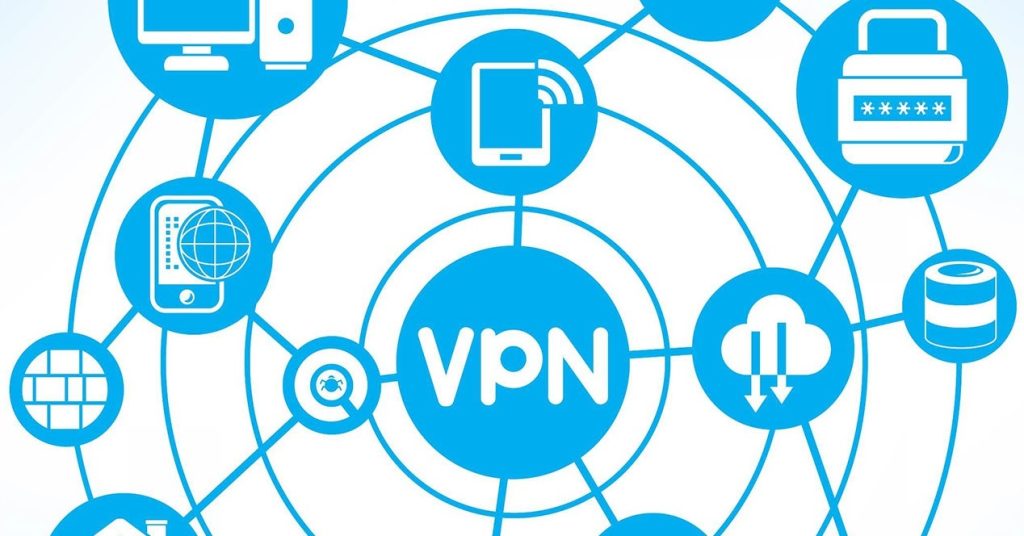
VPN is an abbreviation for Virtual Private Network. It enables you to ‘mask’ your IP address and physical location, as you do what you do on the WWW. Reputable VPN services can be completely free, or upgraded for a very small service fee. VPNs assist with protecting you from surveillance, data breaches and other dangers of the web. This includes hackers, who may want to steal your vital personal information.
What is a VPN?
A VPN or Virtual Public Network is a service that enables you to have a private network over public infrastructure. For example, when you connect to WiFi in a cafe or in a hotel, you are using public infrastructure. VPN services work by ‘cloaking’ your identity. This prevents others from seeing your IP address. This keeps your devices and personal info safer and more secure.
VPN services can prevent access to hackers and protect your device from potential harm. On the other hand, without a VPN on a public network, your devices and system may be vulnerable. Basically, VPNs help you stay safe and secure, for very little cost. In addition to the added level of security, the benefits are many, as we explain further below. Have a look at some of the best free VPN services available yourself. See in the detail the various advantages of each offering. Many of these services also offer paid tiers for additional features.
Below, we discuss the top reasons to use a VPN for private browsing. This makes it crystal clear as to why using a Virtual Private Network service should be coupled with general internet usage.
1. Streaming Content While Abroad
There are various streaming services around the world, which only allow streaming of content to an audience or subscribers in specific countries, based on your IP address. By using a VPN, you can change your local IP address to access content which is only available to those countries. This means that through a VPN, you can access countless content that’s ideally barred from your country. A VPN allows you to make the most out of the Internet as you’ll be able to access content that other people can’t. This is also handy if you are travelling overseas and want to keep watching your favourite content. If you’re traveling to Germany, for example, you can still access all of your favorite TV shows even those that are barred from Germany as long as you use a VPN.
2. Secure Public WiFi
Using public WiFi in cafes, hotels, restaurants, airports, and other public places can be very convenient. This allows you to work or browse content online whenever and wherever you want to. However, using public WiFi in cafes, hotels, restaurants, airports and other public places can leave you vulnerable to outside threats, because of potentially unsecured networks. Using WiFi in public places without a VPN leaves your laptop or device open to attacks from those within a particular network area. If you’re fond of using public WiFi when transferring funds or giving out personal information, you’ll be susceptible to cybercrimes.
On the other hand, activating a VPN adds a cloak of invisibility to your internet browsing experience. This makes it almost impossible for others to identify your IP address. You can then visit any website or watch anything, without the fear of others snooping. Even if a group has the intention of hacking your system or hardware, they will find they cannot pinpoint your location. This is how VPN services can secure the confidentiality of public WiFi.
Some businesses and educational institutions restrict content that students and employees can watch or access online. For example, gambling, adult sites and other non-work related websites. There is a growing amount of content online that is definitely not safe for work (NSFW) or that can be legally monitored by employers in countries such as the USA.
However, there may be times when these restrictions block access to legitimate sites required for work purposes or educational research. Regardless of how informative an article is, if it’s restricted in your server, there’s no way you can access that content. This can prevent you from being productive at work or at school. Using a VPN can overcome such restrictive environments. Use your own discretion as to when using this facility is justified. This will help you get the information that you want, without getting into trouble.
Choose Carefully
Using a VPN can improve your browsing experience without compromising your safety and identity during the process. In fact, installing a VPN should be a necessity among people who often use the internet. If you’re still not using this, it’s best if you start scouting for options and purchase one right away.
The more you know, the easier it’ll be for you to choose the right VPN for your needs. All VPNs can provide the mentioned features but each has different price points, which is why it pays to do some research. It is clear that using a Virtual Private Network is advisable in today’s online world. Especially with so many free VPN service options now available. There really is no reason to not to add this extra layer of protection to your daily internet usage.
About Fastmetrics, Inc. Building & Business ISP
Since 2002, Fastmetrics is the Bay Area’s only dedicated business ISP. We provide telecommunication services in California and the San Francisco Bay Area. Reliable service – backed by better live and local support. From install to 24-7 proactive monitoring, get treated like a VIP customer. Not a number by a faceless call center. We specialize in managed business internet and phones, dedicated high speed business fiber internet, business WiFi, SIP voice solutions / UCaaS and managed network services. We are a Microsoft and Cisco Meraki Partner. Our team are Certified Cisco Specialists, Ubiquiti Enterprise Wireless Accredited and Polycom Authorized Solution Advisors. We take care of your business network, so you can focus on growth.
Google Project Loon Launches Solar Powered Balloons For Internet Service
Google’s parent Alphabet Inc. said Friday that its stratospheric balloons, part of Project Loon, are now delivering the internet to remote areas of Puerto Rico where cellphone towers were knocked out by Hurricane Maria. Two of the search giant’s “Project Loon” balloons are already over the island enabling texts, emails and basic web access to AT&T customers with handsets that use its 4G LTE network.
The balloons — called HBAL199 and HBAL237 — navigate using an algorithm that puts them in the best position to deliver a signal by rising and falling to ride wind currents. They are also solar-powered and only provide a signal during the day.
Several more balloons are on their way from Nevada, and Alphabet has been authorized by the Federal Communications Commission to send up to 30 balloons to serve the hard-hit island, according to Libby Leahy, spokeswoman for Alphabet’s X, its division for futuristic technologies. Project Loon head Alastair Westgarth said in a blog post that Project Loon is “still an experimental technology and we’re not quite sure how well it will work,” though it has been tested since last year in Peru following flooding there.
Hurricane Maria devastated the U.S. territory of 3.4 million people since making landfall Sept. 20. Gov. Ricardo Rossello said Friday the death toll had risen to 49. Less than a fifth of the island has electricity, half its cellphone towers are still not functioning, schools are closed and more than 4,000 are in shelters, according to a government website.
AT&T spokesman Jeffrey Kobs said the company has set up 14 temporary cell sites, and as of Friday more than 60% of the population was connected via mobile network, in part due to the help of humanitarian and government groups and Project Loon. Other technology companies such as Cisco, Facebook and Tesla have also pledged help or have sent teams to the island to improve communications and restore power. This article was originally published on the Los Angeles Times.
See a sample of real Internet speed test results from Fastmetrics business customers going back to 2011. Also test your own Internet speed below. Our own speed tests cover Internet connection types including fiber, EoC, Ethernet and WiFi. Also provided is some average speed data comparing different San Francisco ISPs from M-Lab.
As a dedicated building and business ISP, we aim to provide download and upload speeds that are as close to symmetric as possible. Our fiber Internet and dedicated Ethernet circuits are backed by 99.999% uptime Service Level Agreements (SLA). All Fastmetrics business Internet service options are backed by 24-7 proactive monitoring, certified techs and live Bay Area support.
Because it’s how we use the Internet today. The emergence of cloud computing services is a major need for faster upload speeds. Demand for services such as cloud voice and access to cloud providers such as AWS, Google Cloud, Microsoft Azure, Salesforce and others, requires faster upload speeds.
Many Internet Service Providers do not offer symmetric service. Most speed test results prove upload speeds lag behind download speeds. Many ISPs only advertise their much faster (and more impressive) download speeds.
Because the increased use of bandwidth and data is a natural progression of how we use the Internet today. As a business only provider, all Fastmetrics Internet services offer unlimited data, (except our LTE backup). Many ISPs cap bandwidth or data usage. This means paying extra fees for going over data caps, or service speeds are throttled if data allowances are exceeded.
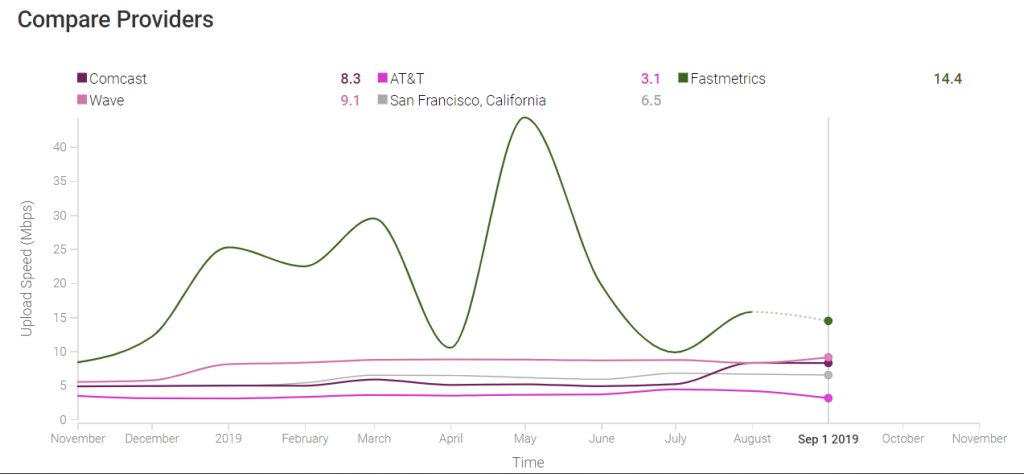
Fastmetrics average upload speed:As of September 1st 2019, 14.4 Mbps. 5.3 Mbps faster than Wave, with the next highest average upload speed of 9.1 Mbps.
Peak average upload speed:On May 1st 2019, Fastmetrics average upload speeds reached a peak of 44.3 Mbps. The next fastest San Francisco ISP was Wave with an average of 8.8 Mbps.
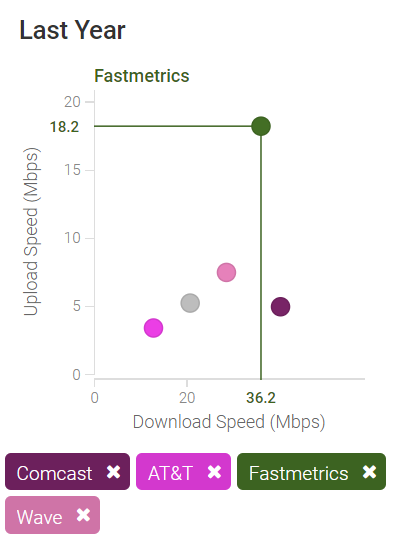
Combined average yearly download speed:Using a year’s worth of data from M-Lab, Fastmetrics average download speeds were slower than Comcast in San Francisco by 4.2 Mbps. Both ISP averages were faster than Wave, AT&T and the overall San Francisco ISP average.
Compare your speed test above with an alternative source. Try this Internet speed test provided by Speedcheck.
Fastmetrics Internet Service Speedtest Results
Most of the sample test results below are from business customers with our fiber internet service connections. San Francisco is the primary location, where our data center is. Ping times are measured from the customer locations back to our data center, on Spear Street. Fiber is the most popular business internet service we provide to our customers. Followed by our dedicated Ethernet service. Both of these services meet bandwidth heavy demands and are reliable with SLAs providing guaranteed up time. Our customers use these services to support multiple users and cloud based connectivity. Our fiber and Ethernet services provide speeds to 100 Gbps upload and 100 Gbps download.
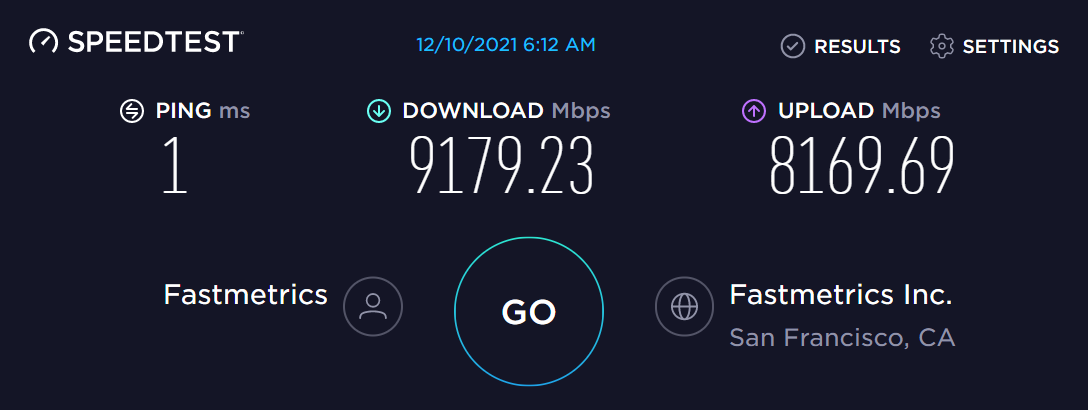
Multi Gigabit Speedtest Result Dec 10th, 2021
Yet another multi gigabit speedtest result from a customer’s office. Clocking in at over 9.1Gbps download and 8.1Gbps upload. Multi gigabit speeds open up a lot of possibilities. Get more done by reducing latency and connecting faster to cloud service providers such as AWS, Azure, Google Cloud and more.
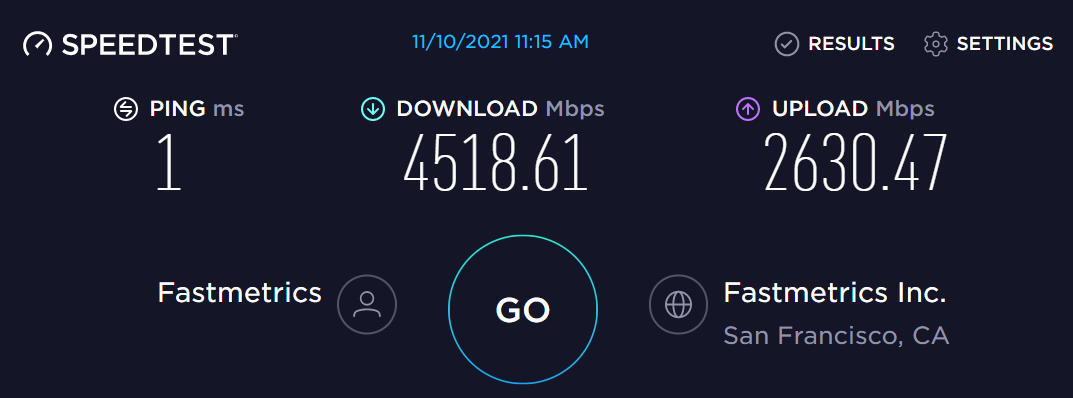
Gigabit Speedtest November 10th, 2021
Another recent multi gigabit internet speed test from a customer location, back to our San Francisco data center.
Fastmetrics Multi Gigabit Speedtest May 18th, 2021
The below speedtest video was recorded from our San Francisco head office on May 18th, 2021. This is a fraction of the connectivity speed we actually provision to customers. (The Gigabit result in the first screen of the video below, is another Fastmetrics gigabit speedtest too). Our Internet service and direct connect speeds reach up to 10 Gigabits per second, upload and download. Our speedtests are often limited by the testing equipment used. This speed test used a Lenovo T480 laptop plugged into a Thunderbolt3 adapter, which in turn was plugged into a 10Gig switch at our office.
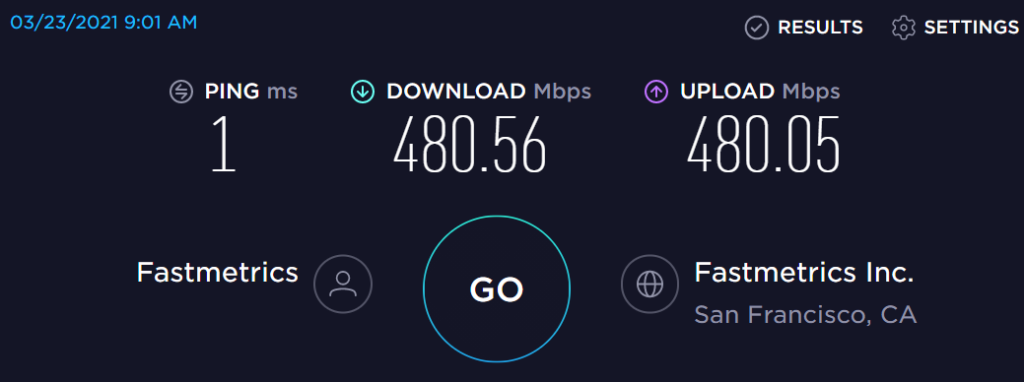
Fastmetrics Fiber Internet Speedtest March 23rd, 2021
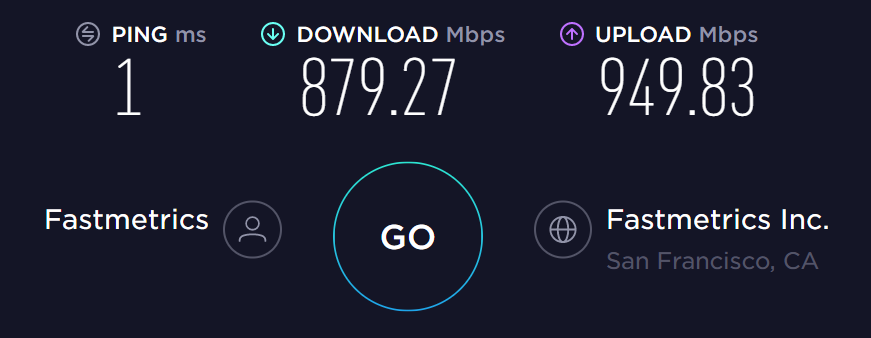
This San Francisco software developer wanted more reliability, which they weren’t getting from their wireless ISP. We installed and setup fiber. The result is faster up and down speeds, backed by our 99.99% uptime metricFIBER SLA.
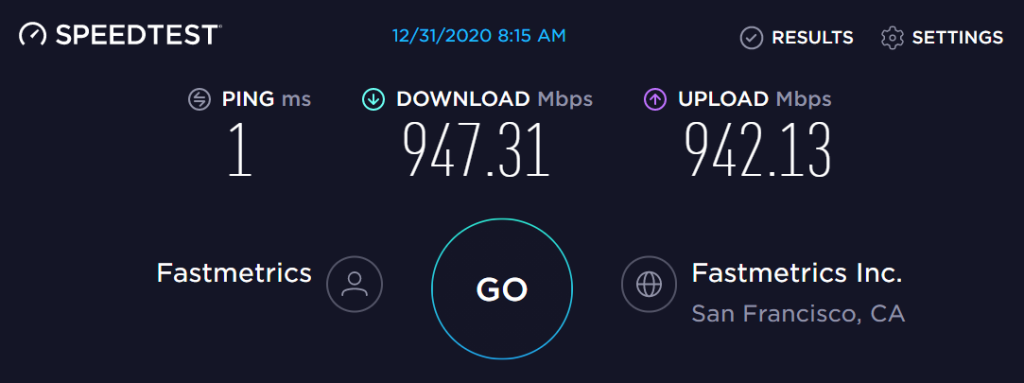
Fastmetrics Fiber Internet Speed Upgrade Results: Dec 31st, 2020
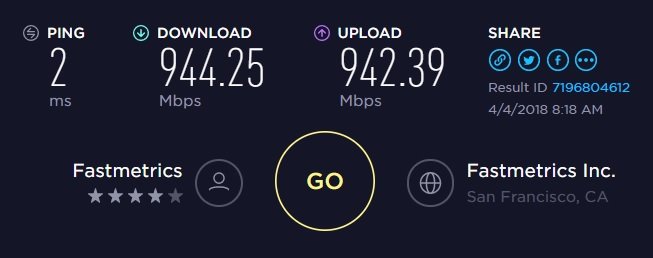
On new years eve in 2020, we upgraded the fiber Internet service speed of this San Francisco public health organization. Fast symmetric speeds over 940 Mbps over download and upload. 1ms ping.
Mobile Speed Test – Business WiFi Service San Francisco: May 28th, 2020
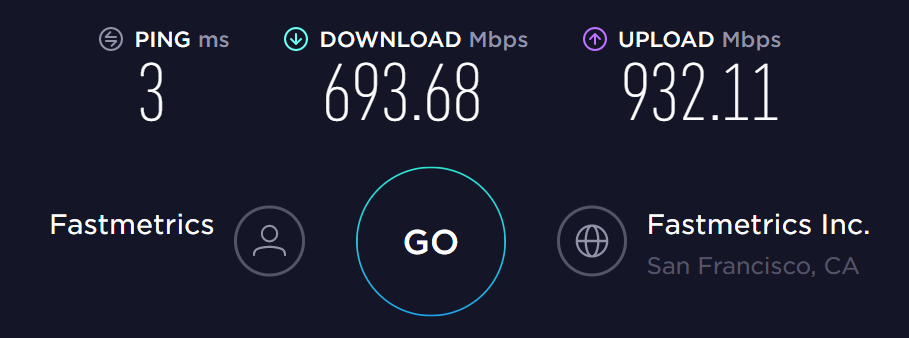
This test completed via iPhone, shows the download and upload capability of our managed business WiFi service. This was tested from San Francisco. The service is available to businesses across the entire Bay Area
Bay Area Customer Internet Speed Test: April 23rd, 2020
New Customer Speed Test Result: April 21st, 2020
Fiber & Direct Cloud Connect Customer Speed Test – October 22nd, 2019
Symmetric Internet Speed Result For Bay Area Customer – October 10th, 2019
Fiber Speedtest.net Result – September 11th, 2019
Fiber Internet Speed Result – August 19th, 2019
Fiber Optic Internet Speed Test Result – April 4th, 2018
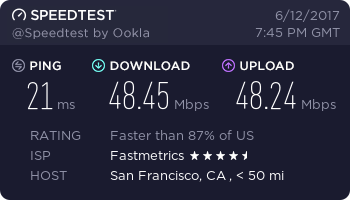
Backup Internet Speedtest Result – June 12th, 2017
Close to symmetric for this customer. Note that some bandwidth is required to keep the connection open, so not the complete 50 Mbps. This circuit is used by our customer as a fail-over solution.
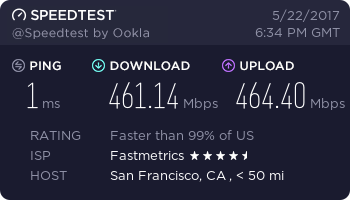
Fiber Optic Internet Speed Test – May 22nd, 2017
Fiber speed test for a San Francisco based customer. This fiber connection is used as a backup to the primary connection of a large company. Note the upload speed in this speed test exceeds the download speed.
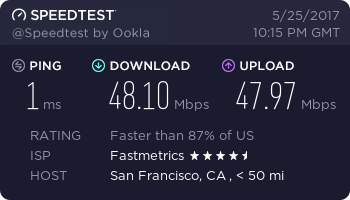
Fiber Internet Test Result – May 25th, 2017
Very close to a symmetric connection for this San Francisco apparel business. Note that some bandwidth is required to keep the connection open.
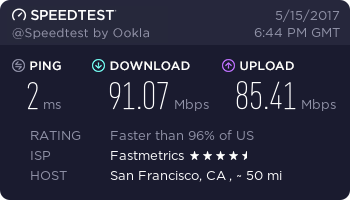
Fiber Speedtest.net Result – May 15th, 2017
A lower tier connection test, coming in at under 100 Mbps. Internet service for a Bay Area based business customer.
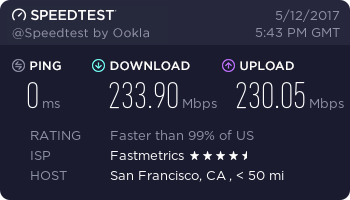
Fiber Internet Service Test – May 12th, 2017
Symmetric fiber internet connection speed test result for another SF based customer. Note the upload speed of just over 230 Mbps.
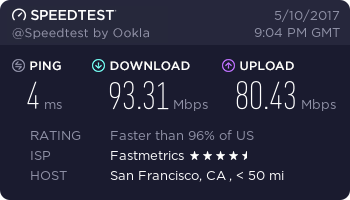
Business WiFi Service Speed Test – May 10th, 2017
A good result here for business WiFi service. Note the slightly slower ping of 4 ms. Upload speed is not symmetric, but still fast. We provide completely managed WiFi service. This provides optimal speed performance for a business wireless network.
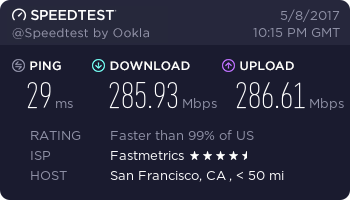
Fiber Internet Speed Test – May 8th, 2017
Note the upload speed for this test actually exceeds the download speed, which is rare.
Business WiFi Speed Test From Mobile – 22nd Jan, 2016
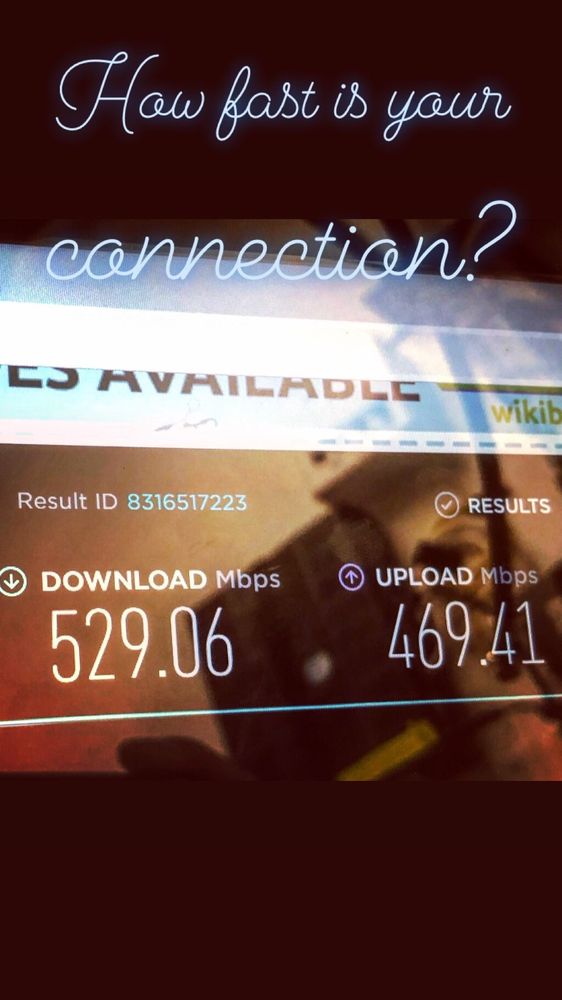
Business WiFi test from one of our Network Engineers, after WiFi network setup at a customer location. Using a Samsung mobile device.
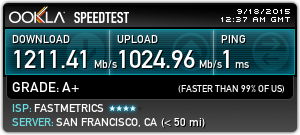
Gigabit Fiber Internet Speed Test Result – September 18th, 2015
This 2015 speedtest.net result, shows the capabilities of our Gigabit fiber service. Gigabit internet download speed alone, combines the power of approximately 660 bonded T1s!
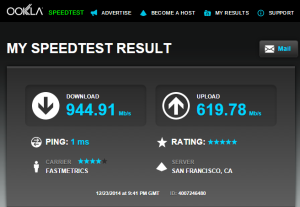
Fiber Internet Speed Result – December 23rd, 2014
Another fiber optic test result here. Good ping time and download speed. Upload speed is still fast at > 600 Mbps, but it’s not symmetric.
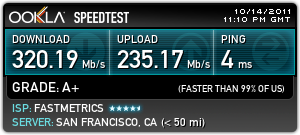
Fiber Optic Internet Speed Result – October 14th, 2011
This speed test from 2011 is also for a business fiber customer. Note the ping time is a little slower than our gigabit result above.
More Speed Test & Internet Service Resources
A speed test with Comparitech donates $0.01 USD to the Electronic Frontier Foundation, a non-profit digital rights advocacy group, for Computers 4 Africa
Our new 10 gigabits per second (symmetric upload and download speeds) fiber or dedicated Ethernet service, is now available to qualified businesses. We created a short video for the Fastmetrics YouTube channel, to promote this new business service offering.
Video transcription: Is your business looking for fast, reliable and secure internet service? Fastmetrics supplies symmetric fiber, scalable to 10 gigabits per second. Backed by local support in the Bay Area. Get a free install at your business today! Visit fastmetrics.com
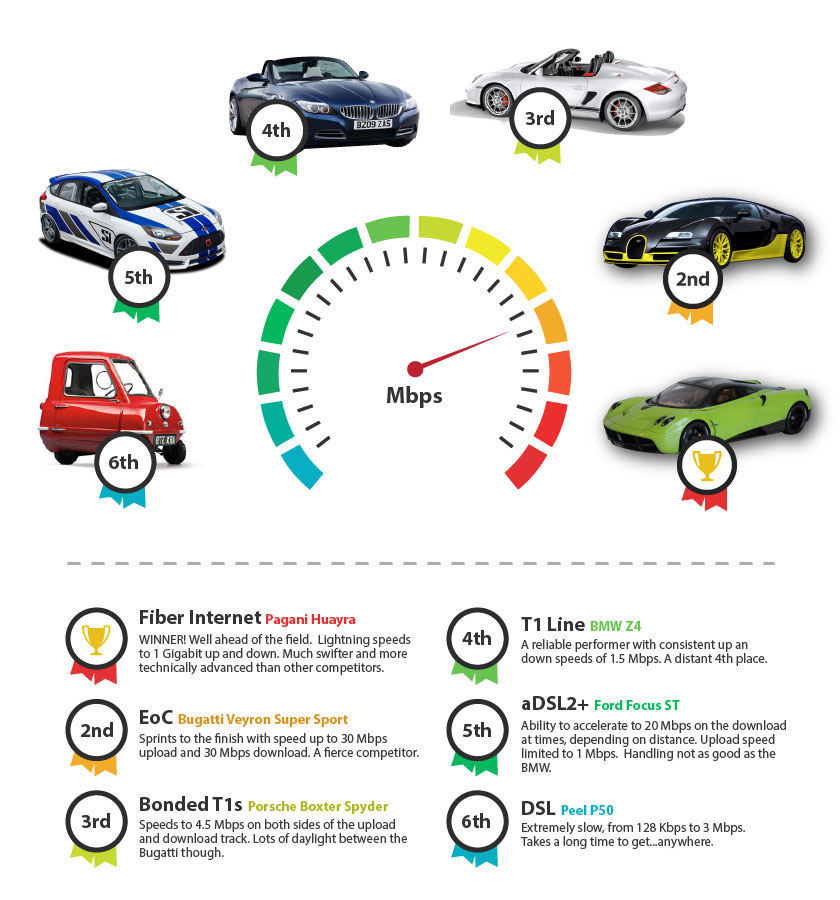
Internet Speed Raceway Infographic
We raced popular Internet services, then paired each service with a car. Placings were awarded from 1st to 6th. Business Internet services were matched with cars based on performances in the ‘power lap’ of the BBC racing show, Top Gear. Results from the BBC show were given preference over U.S results, due to a larger range of speed tests. No offense to any Peel P50 or DSL ‘drivers’! Considerations from each Internet service;
Since 2002, Fastmetrics is the Bay Area’s only dedicated business ISP. We provide telecommunication services in California and the San Francisco Bay Area. Reliable service – backed by better live and local support. From install to 24-7 proactive monitoring, get treated like a VIP customer. Not a number by a faceless call center. We specialize in managed business internet and phones, dedicated high speed business fiber internet, business WiFi, SIP voice solutions / UCaaS and managed network services. We are a Microsoft and Cisco Meraki Partner. Our team are Certified Cisco Specialists, Ubiquiti Enterprise Wireless Accredited and Polycom Authorized Solution Advisors. We take care of your business network, so you can focus on growth.
10 Factors Affecting WiFi Performance & What To Test
In a business or enterprise, there may be various factors affecting your WiFi performance, coverage or connectivity speeds. Some can be easily fixed, others require higher, technical levels of troubleshooting or investigation. The recent launch of WiFi 6 aims to solve some of these common wireless network issues.
From physical factors such as equipment or power levels, to the not so obvious, (which may include interference or fragmentation), some WiFi factors you can control. Other factors, are much more difficult to remedy. We looked at 10 common factors influencing WiFi service performance and what your team, Internet Service Provider (ISP) or Wireless Internet Service Provider (WISP) can do to troubleshoot or combat them. Battling slow Internet speeds at home during lockdown? Here’s some practical and simple tips on how to improve home Wi-Fi speeds from Porch.
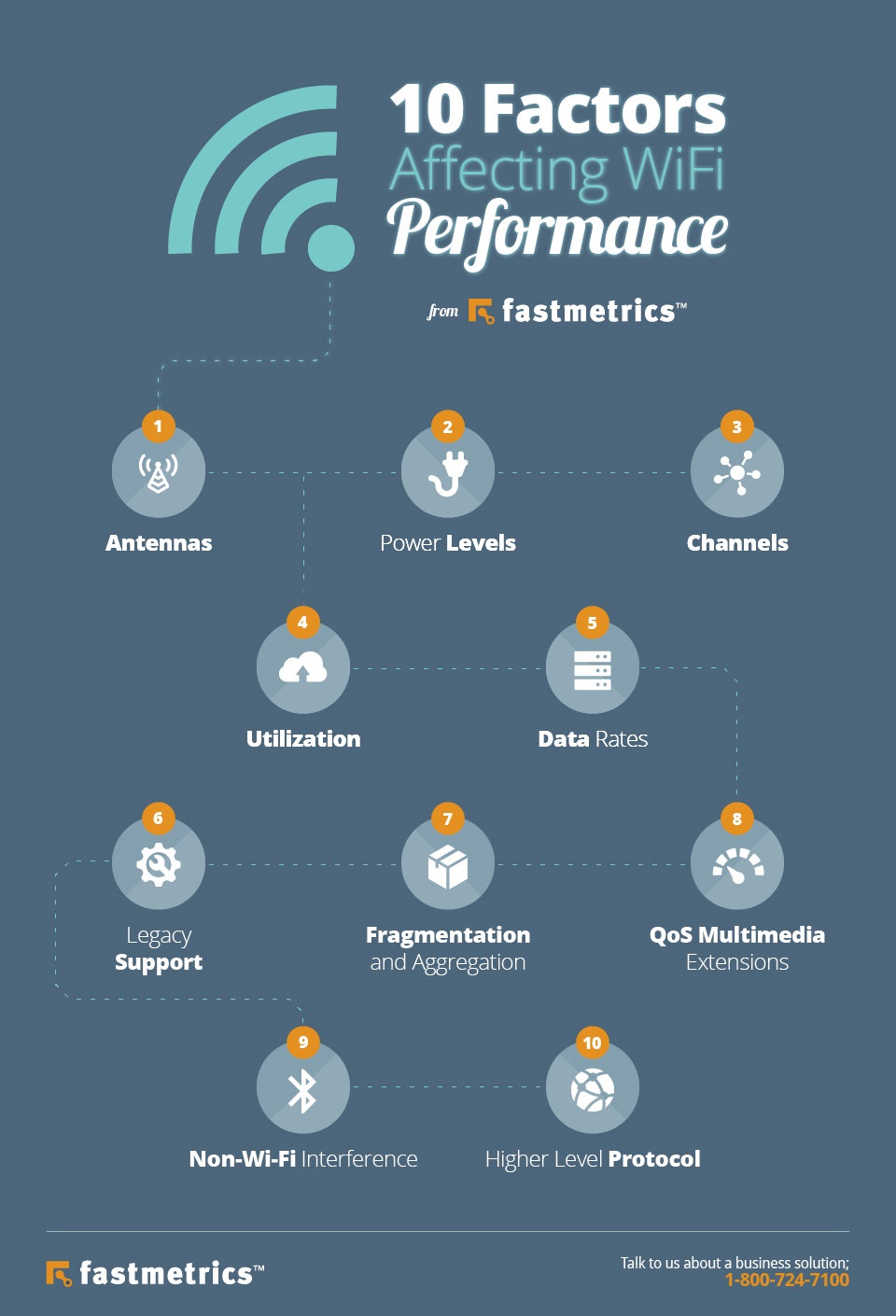
See an overview in the info graphic below, with explains what to look for and what to do for each step, below that.
1. Antennas Impact Coverage & WiFi Transmissions
WiFi can be affected by the antennas in your service equipment. Antennas have a significant impact on WiFi coverage your business or company receives.
What To Look For: When looking at WiFi performance, be sure to check what antennas are deployed or built into your WiFi access points. Usually antennas are within a building space or office, but these may also be setup outside as well, depending on the setup or service.
Omni-directional antennas – most common type. Transmit 360 degrees, in a pattern.
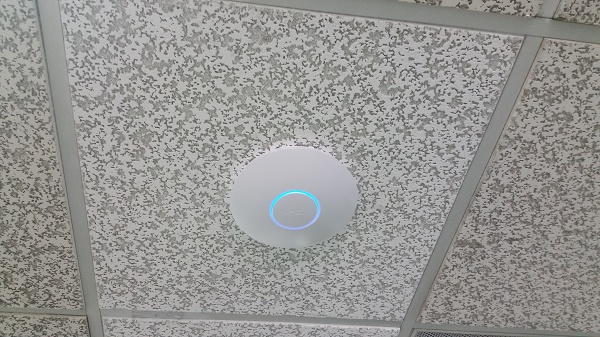
Ceiling mounted – setup to transmit to users on the floor below.
If your antennas are near some sort of structure, like a metal grid or cement beam, this can affect WiFi transmissions.
2. Equipment Power Levels Affect WiFi Performance
Power levels of your WiFi equipment also influence speeds. It’s not always a case of more is better, when it comes to WiFi power levels. Power levels transmitted by your access points matter and there does need to be enough for sufficient range and coverage. Power is not always as stated on the data sheets or settings, that come with your WiFi equipment. WiFi coverage issues may be caused by low level power.
The automatic power control algorithms of WLAN equipment, basically “optimize” with any neighboring access points detected. This is more or less for efficiency. This can occur at a lower power level than required for optimal performance. Recommended: Adjust transmit power control range, so that the minimum value is higher than the default setting.
3. Consider Your WiFi Channel Assignments
Channel assignment is a logical barrier to WiFi performance, even if physical issues such as power, access point placement and antennas are optimal. When you have more than one access point (AP), this can cause overlap. To avoid this issue, some manufacturers of WiFi service equipment have created their own protocols for ‘Collision Avoidance’.
UAP Unifi Pro Wifi Access Point by Ubiquiti Networks
What To Do: Adjacent access points should use different channels. This is so they are not just receiving passively, but also transmitting.
What To Check For: Within the 2.4 GHz band, channels are spaced apart by 5 MHz and are 20 MHz wide, causing overlap. In North America, adjacent access points should be on channels 1, 6 and 11. At 5 GHz, channels are spaced every 20 MHz. This should not cause issues, unless channels are being combined for more bandwidth purposes.
4. Utilization In WiFi
Air time utilization is another logical factor impacting WiFi performance. There are 3 types of WiFi transmissions;
Data
Control
Management frames
Most capacity should be used for transmitting data. If your network is supporting a large number of SSIDs, lots of utilization is taken up by beaconing and probe responses. Beaconing rate is also an influence.
What To Do:
Keep the number of SSIDs under 5.
If possible, extend beaconing rate from 100ms to 300ms.
5. WiFi Data Rates
Data rates to transmit packets can be a tough factor to optimize when it comes to WiFi. We all want to transmit data as fast as possible. However, this in itself is an issue. It is more difficult to successfully send data at higher rates than lower ones.
What To Do: Try a lower maximum data rate than the default maximum setting. This will reduce data re-transmissions. The ideal WiFi environment is one which is uses higher data rates with few re-transmissions.
6. Support Of 802.11b
802.11 was designed to be compatible with slower and older devices running 802.11b. This ‘legacy support’ can impact WiFi performance hugely. 802.11b packets take longer to transmit. Users of 802.11b can not detect the higher 802.11. This causes access points to go into “protection mode”. This adds an inefficiency to service levels.
What To Do: Disable 802.11b where possible.
7. Fragmentation & Aggregation
Fragmentation aims to improve WiFi performance in a ‘cluttered’ environment. Fragmentation breaks up packets into smaller pieces, for a higher chance of successful transmissions. A receiver has to put all these fragments back together, to form the original packet. The downside is the cost of doing this with each fragment. Aggregation is used to acknowledge blocks or groups of packets, which cuts down the requirement to acknowledge every single packet, enhancing efficiency and performance.
8. QoS Multimedia Extensions
Using Quality of Service (QoS) traffic classes can help prioritize data within your network, to improve performance. These are frequently translated to unique SSIDs for voice or video. (Voice and video are typically more prone to delays). A 802.11 wireless multimedia extension can be applied to both wired and wireless service to offer an end-to-end extension for classifying traffic.
9. Non-WiFi Interference
More often than not when WiFi performance is degraded or under-performing, the first option is to check the spectrum analyzer to find the cause. The analyzer will not always find the problem. WiFi can work in the presence of other radio interference. It’s important to understand that other factors may play a role in degrading performance. At the 2.4 GHz level, there can be interference bursts.
What To Do: Measure interference levels. Compare how the network was performing at the same time with a tool that can cover a large window.
Higher level protocols such as TCP / IP, (utilized for file transfers and online transactions) can look like they harm WiFi performance. Packets sent via a transmitter using the Transmission Control Protocol (TCP) require acknowledgement from a TCP receiver. If received within a specified time, a transmission window will open, gradually increasing the number of packets sent.
Any loss or delay with a packet or acknowledgement, prompts TCP to shut the transmission window rapidly. This may show your network connection as slow. Network parameters such as packet loss and latency at a wireless level, or in a fully wired network, will impact the perceived speed of the WiFi.What
What To Do: It is important to trouble shoot your network end-to-end, segmenting WiFi issues from wired network issues.
What are some other tips for faster WiFi speed + better performance?
The below video from Liron Segev (The Techie Guy) is a 4 minute how to on what you can do right now to improve WiFi speed and performance. This is a very quick fix for the channel assignment issue mentioned in step 3 of this article. It works very well and can provide an instant increase to WiFi speeds.
Video: How to make WiFi and Internet speed faster with 2 simple settings
Video transcript: Wait, what? This WiFi is ridiculously temperamental. I mean you stand in one spot to get perfect signal. You move to another spot that’s ridiculously slow. Go back to the original spot. It’s slow again. If your WiFi is temperamental just like this, you want to be able to fix your connectivity issues, speed up your internet connection, speed up your WiFi. Well, today, I’m going to show you how to do it and it’s not going to cost you anything. Let’s do this. Hi. Welcome to another talk in tech with the Techie Guy. My name is Liron Segev where I make technology simple. If you’re into phones, gadget, apps, tips and tricks, how-tos, hit that subscribe button and today, I’m going to show you how you can fix your WiFi issues once and for all and never have that frustration of that slow internet. Let’s do this.
OK. Before we get going, what I’m going to do is do a download test using speedtest.net. I want to see what my download speed is going to be. 31.62 which is quite horrible and then the upload speed is 11.56. OK. Now what? Right. Next up, go into your Google Play Store or your Apple Store and look for this tool. It’s the Netgear Analytics App. Now it is free and regardless whether you have a digital router or not, this will still work. So go and install that on your phone.
OK. Let’s launch our newly-installed app and I’m going to analyze my current network. This is the WiFi that I’m currently connected to. Don’t worry. It’s very, very simple to use. The signal is divided into poor, good and best and as I’m walking around my house, I can identify the spots where I’m getting terrible signal. So that’s already a useful application. Now what I’m going to do at the bottom of the application, I’m going to look for this thing that’s called the “network status”. It looks like a little WiFi. Click on that and that’s going to identify not just my network but all the networks around and you will notice they’re all using the same channel.
So in other words, we’re all fighting for that WiFi signal on the same channel. That’s not good. OK. So what do you do? In the app, tap the thing that looks like a radar and that’s going to give you the current channel status that I’m connected to, which is currently channel one. But it’s also going to show me at the bottom what are the better channels to connect to, 6 and 11. And they give me a great and best signal. So let’s change that.
Now head to my computer. Go into my routers, admin console. Typically these are the addresses. You have to find out from your manufacturer what it should be for your specific settings. Log in. Click on “Advanced”. Now I am looking for something called the “Setup” and I’m looking for the wireless setup, the WiFi setup and here, instead of having the channel to be automatic, I will change it to 11 and the other one is already at 44, which is great. Those were the two channels they told me that’s going to get less interference. Whilst we’re here, go to your DNS setting and this time instead of using the default one, use Cloudflare new DNS 1.1.1.1, 1.0.0.1 and then Google’s DNS 8.8.8.
All of this is going to give you a much better experience. OK. Apply and let’s test it. We’re back to our speed test and the moment of truth and oh my gosh. Yes. This is a 150 meg download which is a little bit of an improvement off the first – what was it, 31.62? So clearly this works.
The only difficult part was finding out what your router’s username and password is and remembering how to log in. Once you get that done, the rest is simple. If you like this video, don’t forget to give it a thumbs-up. If you like this kind of content, smash that head below and subscribe to this channel. Check out some of these other cool videos and I will see you on the next episode because that’s tech simple. Cheers for now.
Fastmetrics provides managed business WiFi connectivity, fiber optic internet and broadband for businesses. We are the Internet Service Provider for WiFi Alliance, the global authority on all things WiFi.
More Quick Fixes For Common WiFi Issues
When there are WiFi issues or internet service interruptions, we can’t do what we need. A reliable WiFi connection is a necessity at work and at home. WiFi is the easiest method to connect (preferable to plugging directly into a router). So when we don’t have it, we often don’t know what to do with ourselves. Without WiFi, it certainly makes it harder to finish that report at the office, play that online game at home, or chat online with friends or relatives. All these tasks require functioning WiFi.
As discussed extensively above, some minor router fixes or issues effecting WiFi performance, don’t require tech support. A few easy tips below have you covered if you run into these common WiFi problems. For common, every day problems with WiFi, there’s some simple solutions you can action yourself to fix.
Slow / No WiFi Signal / WiFi ‘Dead Zones’ In Certain Areas
Your router sends signals in all directions from one central location. If your router is tucked away in a far corner of your office or house, the opposite side of the same space, may not get the same coverage. This can be due to distance from the router, or walls / glass interfering with WiFi signal. Try moving your router to a more central location, or install more wireless access points. If you can put your router in the center of your coverage area, you will get better coverage throughout your business or house.
It’s very common in apartment or high rise buildings to have WiFi issues. It’s often caused by other tenants routers causing interference. This harms WiFi signal strength and therefore connectivity. There’s a fix for this as well. You can use free software like NetSpot, which tells you all the wireless networks around you. You can see what channel other tenants or offices are using. This then allows you to switch to use a less ‘crowded’ channel, (a channel with less interference), which can solve WiFi issues.
Generally Slow WiFi Speed
Let’s say that you have a powerful and functional router, with signal that covers your office or house, but suddenly your internet speeds are much slower than usual. What gives? You moved the router and it still doesn’t improve. Now what? Try adjusting the router antennas. Or, resetting it and changing the channels as mentioned above.
If that still doesn’t solve your WiFi issue, you may need to use a WiFi extender. You can also try plugging your modem into your PC directly with an Ethernet cable. If you get the same results, it is likely your ISP that has an issue, so you should contact them. Your ISP can tell you what you need to do from there.
No Internet Connection When Connecting To Your Router
What do you do when you can connect to your office or home WiFi router with your smartphone, but can’t connect from your laptop or desktop? Try unplugging your modem, wait at least 30 seconds and then plug it back in. (What is called ‘power cycling’). Be patient and give your router time to fully restart. First, determine if your internet connection is running on your phone and try again on your other devices.
These are just a few of the basics. While these tips won’t work 100% of the time, they will work in many instances. Sometimes, it might be time to buy a new router or upgrade older equipment. Want better WiFi performance at your office or business? Contact Fastmetrics to speak to a network performance expert today.
About Fastmetrics, Inc. Building & Business ISP
Since 2002, Fastmetrics is the Bay Area’s only dedicated business ISP. We provide telecommunication services in California and the San Francisco Bay Area. Reliable service – backed by better live and local support. From install to 24-7 proactive monitoring, get treated like a VIP customer. Not a number by a faceless call center. We specialize in managed business internet and phones, dedicated high speed business fiber internet, business WiFi, SIP voice solutions / UCaaS and managed network services. We are a Microsoft and Cisco Meraki Partner. Our team are Certified Cisco Specialists, Ubiquiti Enterprise Wireless Accredited and Polycom Authorized Solution Advisors. We take care of your business network, so you can focus on growth.
A common question we get from our customers is; “why is my internet slow?”. A variety of factors can cause a decrease to internet speed. The main causes of slow Internet service connections speeds in the USA are;
The upgrading of network or ISP infrastructure which supports internet services (network disruptions).
The other factor is directly related to infrastructure. It is how we actually utilize the internet as a service today.
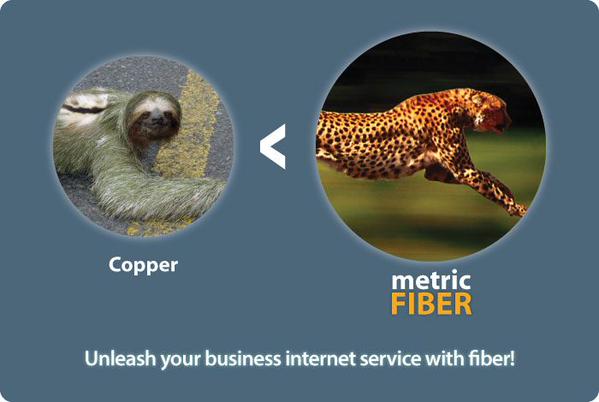
Internet Doing The Sloth Struggle Or Running With Cheetahs?
How Do We Know Internet Is Slow?
As a business Internet Service Provider, we monitor thousands of US based internet service connections, both copper and fiber based. Slower internet speed is a trend we have seen more and more of recently with business internet connections. It’s not an isolated issue based on location or carrier dependent either. Internet service connections are slowing down across the USA. Essentially, internet service speeds are ‘maxing out’. Obviously this can be a frustrating experience when you are trying to get things done, or supporting multiple end users.
So Why Is My Internet Slow?
The problem of slow internet service speed is two-fold;
Internet backbone providers have been frantically and vigorously upgrading infrastructure to satisfy the higher demands of customers. Often, they are implementing multiple 100 Gigabit backbones, but certainly multiple 10 Gigabit backbones. Disruptions from these upgrades can cause slow downs.
These upgrades are essential to meet higher demands from cloud services, streaming and other utilities now available (and expected) from today’s internet service users.
What Are The Outcomes Of Improved Network Infrastructure?
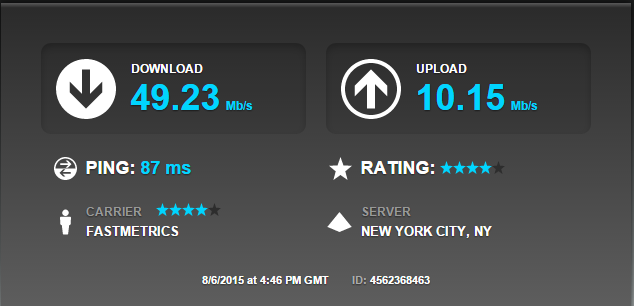
Around 2 years ago in 2012 – 2013, we used to see internet speeds on the long haul at a max of about 20 Mbps. Today, we now see speeds frequently topping 50 Mbps. For example, this recent internet speed test to New York City from San Francisco, was 49 Mbps download and 10 Mbps upload:
What Internet Speeds Do ISPs Deliver In 2020?
Today, demand for more bandwidth and faster Internet connection speeds, keeps increasing. 100 Mbps was considered ‘high speed’ a few years ago, but these are also maxing out. Gigabit and multi-gigabit dedicated Ethernet or fiber connectivity has taken over, especially for bandwidth heavy business use. Check this speedtest video for a new Fastmetrics customer connection from April 21st, 2020;
How Do Slow Internet Speeds Affect End Users?
Where a 20 Mbps upload and 20 Mbps download internet connection was once more than adequate for a business, it suddenly starts maxing out as multiple users go to cloud based services such as dropbox, Amazon AWS, YouTube, etc. Now more than ever, 50 Mbps or 100 Mbps internet connections do not only make sense, they are a requirement. (2018 update: we have seen huge increases in demand for 500 Mbps and Gigabit service).
What Can I Do To Improve Internet Speed, Apart From Upgrade My Service Plan?
An alternative to an upgrade of internet service speed, is a firewall or managed router. A managed router can be setup to be used for traffic shaping (sometimes referred to as ‘packet shaping’). This router, such as a Meraki, Sonicwall or Draytek, as well as many other vendors, all support traffic shaping, based on source and destination IP addresses.
Hardware is setup to ‘shape’ traffic, based on destination and source. Combined with Multi-Protocol Label Switching (MPLS), a managed router can be an efficient way to prioritize traffic and increase data speed, based on what it is most important.
Single Data Connection MPLS Setup Example
Managed routers and MPLS techniques allow an IT department or Network Engineer to prioritize traffic. This could be to a cloud based provider, such as Salesforce, Google Drive, or others. Many services can be prioritized, based on importance.
About Fastmetrics, Inc. Building & Business ISP
Since 2002, Fastmetrics is the Bay Area’s only dedicated business ISP. We provide telecommunication services in California and the San Francisco Bay Area. Reliable service – backed by better live and local support. From install to 24-7 proactive monitoring, get treated like a VIP customer. Not a number by a faceless call center. We specialize in managed business internet and phones, dedicated high speed business fiber internet, business WiFi, SIP voice solutions / UCaaS and managed network services. We are a Microsoft and Cisco Meraki Partner. Our team are Certified Cisco Specialists, Ubiquiti Enterprise Wireless Accredited and Polycom Authorized Solution Advisors. We take care of your business network, so you can focus on growth.