In addition to being a Cisco Certified Specialist, Fastmetrics is also a Cisco Meraki Partner. This means the Fastmetrics network support team are qualified Cisco Meraki Solutions Specialists. We are certified to design, implement, run and support the Meraki suite of products.
What Is Cisco Meraki & What Can It Do?
Cisco Meraki provides cloud managed IT services and a suite of supporting hardware. Meraki services are controlled by a cloud based dashboard. Some of the IT solutions from Meraki include; SD-WAN, network security, WAN management, wireless connectivity (including support for higher speed WiFi 6), smart cameras, IoT, switches and mobile device management. All can be controlled and monitored from the central cloud-based dashboard, which is a key feature of the Meraki suite.
Network management via Meraki is efficient to setup, configure and create alerts both remotely and in office. So whether working with a hybrid, remote or in-person workforce, Meraki provides secure network control. It’s also easy to create alerts for new networks or expand existing ones.
Why Work With A Cisco Meraki Partner?
We’ve invested time in the training (and exams). We have real-world experience deploying and supporting Meraki solutions. We know the products and platform. We know how to get the best out of Meraki for your IT departments benefit. For business customers, we deploy the latest Meraki hardware to get your network setup up to speed, without the hours familiarization needed. Whether that be faster WiFi 6 access points, network security, SD-WAN or other, contact us via the form below, to find out how Fastmetrics can help your network adapt and grow efficiently, via our Cisco Meraki partnership;
Below are some uses cases for the Meraki suite of products. It can be successfully deployed to cater to a variety of industries, including healthcare, government, retail and hospitality. Click on each image to open the PDF solutions guide for each relevant industry.
Higher education: Below is a use case solution guide for Meraki in higher education, such as schools and universities. As demands to modernize legacy IT infrastructure in the education sector grow, see how Cisco Meraki helps achieve this. Also, how the Meraki suite can deliver outcomes such as secure, flexible and blended learning environments.
Cisco Meraki Higher Education Solutions Guide
Manufacturing: Below is another solution guide for Meraki use in the manufacturing industry. After COVID-19 disrupted global supply chains, Meraki offers operational savings for multi-site manufacturers and producers. It can help reduce Total Cost of Ownership (TCO) via central cloud management, for multiple locations. Also cost IT cost savings via automated updates, patching and deployments.
Cisco Meraki Manufacturing Solutions Guide
Cisco Meraki “Experiences Start Here” Video:
Video transcript: Female Speaker 1: Cisco Meraki began with the pursuit of revolutionary new technology, 100 percent cloud-managed IT. Female Speaker 2: Basically an entire network under a single pane of glass. Female Speaker 1: After more than a decade in business, Meraki continues to innovate, delivering the simplest, most powerful solutions around. Male Speaker 1: Helping our customers stay ahead of the curve as demands continue to grow. Female Speaker 1: This means that wireless is expertly designed and engineered, optimized for the real world. Male Speaker 2: Which means a better user experience and it’s easier to set up. Female Speaker 1: Meraki’s best-in-class network security is updated automatically, giving you a powerful defense and peace of mind. Male Speaker 3: So no matter the vulnerability, we’re always working to keep you covered. Female Speaker 1: And ambitious goals don’t require cumbersome tools and a team of experts to achieve. Female Speaker 3: So you can finally get rid of all of these. Female Speaker 1: Now your networks can be configured in minutes, even for hundreds of sites around the world. Male Speaker 4: Wait. Really? Female Speaker 1: Yes, really. Plus you can manage your networks from anywhere. Female Speaker 4: Seriously Dad? Male Speaker 5: Yeah, I was just trying to finish something up. Female Speaker 1: Today IT isn’t just racks and cables in a server room. It’s working with sales, marketing and the C-suite to solve business problems. It’s intelligent insights giving you an edge in decision-making. It’s giving you time back to focus on the work that really matters. It’s powerful technology for everyone. So get smart and work simple.
About Fastmetrics, Inc. Building & Business ISP
Since 2002, Fastmetrics is the Bay Area’s only dedicated business ISP. We provide telecommunication services in California and the San Francisco Bay Area. Reliable service – backed by better live and local support. From install to 24-7 proactive monitoring, get treated like a VIP customer. Not a number by a faceless call center. We specialize in managed business internet and phones, dedicated high speed business fiber internet, business WiFi, SIP voice solutions / UCaaS and managed network services. We are a Microsoft and Cisco Meraki Partner. Our team are Certified Cisco Specialists, Ubiquiti Enterprise Wireless Accredited and Polycom Authorized Solution Advisors. We take care of your business network, so you can focus on growth.
Cabling, WiFi & Security Cameras For Medical Clinic Expansion
Fastmetrics case studies highlight real outcomes from the use of our managed services. In each case study we illustrate a customer problem, the solution and results.
Problem: New Building Plans & Telecommunications Upgrade Needed
A California based medical clinic and doctor’s office needed more space to help existing and new patients and was constructing a new 3,339 sq ft building. The customer also needed upgraded telecommunications, which included infrastructure to support telehealth and virtual appointments. Also needed, was a wireless network that could handle doctors, nurses and staff moving around the building connecting on tablets. Furthermore, they needed it fast. The biggest problem: construction had not yet started on the new building. Nothing had been designed, other than room spaces and department locations.
Requirements: Guidelines, Maps & Specs For RFPs
The customer needed specifications to build their Request For Proposals (RFPs) along with Guidelines, List of Materials, Cable Run Maps, and Wireless Access Point locations. They also needed something they had no experience with before: an outdoor security camera system.
Solution: Detailed Plans For All Project Stake Holders
The customer approached Fastmetrics with the above requirements and we delivered. Our team designed cable runs and a wireless network design plan for the entire building, to meet client connectivity needs. We were able to build out a complete solution, along with revisions and deliverables to the architects, designers, IT department, and executives in a readable and detailed way. This was completed before deadlines, for a fraction of the cost.
Results: Clear & Concise Infrastructure Plans
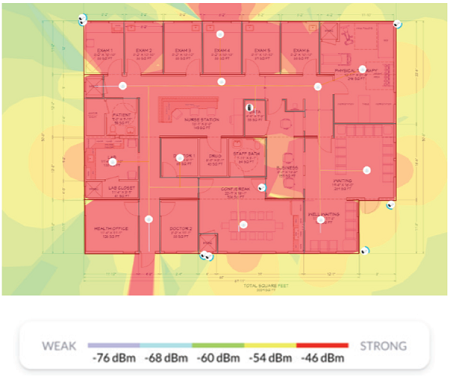
Estimated 2.4 Ghz WiFi Coverage: Expected 2.4 Ghz WiFi coverage for our client can be seen below, based on UniFi access point placements;
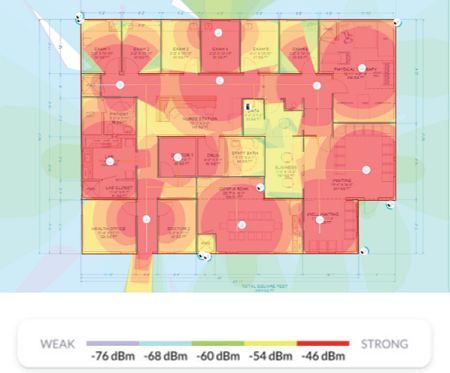
Estimated 5 Ghz WiFi Coverage: Expected 5 Ghz WiFi coverage for our client can be seen below, based on UniFi access point placements;
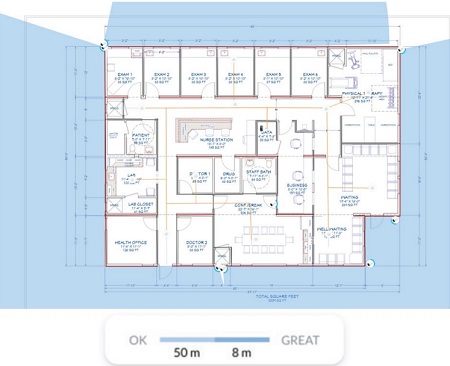
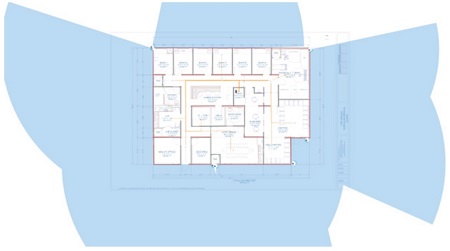
Estimated Security Camera Coverage: A detailed map of security camera ranges and coverage for the new building was also provided to the client;
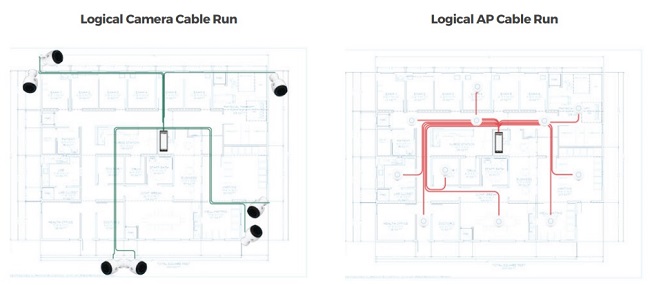
Logical Cable Run & WiFi Access Point Cable Runs: Detailed maps showing cable runs for UniFi WiFi access points and security cameras;
ISP Support For This Customer:
Fastmetrics Customer WiFi Speedtest From Mobile Device
About Fastmetrics, Inc. Building & Business ISP
Since 2002, Fastmetrics is the Bay Area’s only dedicated business ISP. We provide telecommunication services in California and the San Francisco Bay Area. Reliable service – backed by better live and local support. From install to 24-7 proactive monitoring, get treated like a VIP customer. Not a number by a faceless call center. We specialize in managed business internet and phones, dedicated high speed business fiber internet, business WiFi, SIP voice solutions / UCaaS and managed network services. We are a Microsoft and Cisco Meraki Partner. Our team are Certified Cisco Specialists, Ubiquiti Enterprise Wireless Accredited and Polycom Authorized Solution Advisors. We take care of your business network, so you can focus on growth.
Fastmetrics Rated ‘Best Internet Provider San Francisco’ 2021
The Fastmetrics team is pleased to mention that we have been rated as ‘Best Internet Provider in San Francisco‘, by popular local services authority, Expertise.com.
The L.A based team at Expertise, go through a selection process and curates the best in local businesses offering a range of services, across the USA;
“Expertise.com finds and reviews the top service professionals in over 200 industries across the U.S. Each month, we research more than 60,000 businesses to help customers find the best-qualified professional for their needs. Our research process is always evolving to keep up with industry changes, so we’re confident that when we say a provider is one of the best, it is”
Top 6 Best Internet Providers In San Francisco
Fastmetrics was scored and graded as the number one pick in a top six of local San Francisco ISPs. This top 6 list was sourced from 34 different Internet service options for the San Francisco area. As of the last update on June 16th, Expertise.com graded the top 6 options for Internet Service Providers (ISPs) in San Francisco as;
Fastmetrics
Monkeybrains
Raw Bandwidth Communications
San Bruno CityNet Services
Unwired Ltd
Webpass
Key business rating criteria across different categories on the Expertise website includes;
Availability: “Consistently approachable and responsive, so customers never feel ignored”
Qualifications: “Building customer confidence with licensing, accreditations, and awards”
Reputation: “A history of delighted customers and outstanding service”
Experience: “Masters of their craft, based on years of practical experience and education”
Professionalism: “Providing service with honesty, reliability, and respect”
To see how the Expertise team researches and selects businesses to qualify, see their selection process page. From the Expertise team, this is how the process works;
“Our goal is to connect people with the best local experts. We scored San Francisco Internet Providers on more than 25 variables across five categories, and analyzed the results to give you a hand-picked list of the best”
The team at Fastmetrics looks forward to maintaining this high standard of service, professionalism and support, for customers in San Francisco and the wider Bay Area that we serve.
About Fastmetrics, Inc. Building & Business ISP
Since 2002, Fastmetrics is the Bay Area’s only dedicated business ISP. We provide telecommunication services in California and the San Francisco Bay Area. Reliable service – backed by better live and local support. From install to 24-7 proactive monitoring, get treated like a VIP customer. Not a number by a faceless call center. We specialize in managed business internet and phones, dedicated high speed business fiber internet, business WiFi, SIP voice solutions / UCaaS and managed network services. We are a Microsoft and Cisco Meraki Partner. Our team are Certified Cisco Specialists, Ubiquiti Enterprise Wireless Accredited and Polycom Authorized Solution Advisors. We take care of your business network, so you can focus on growth.
Advancing technology coupled with the raging coronavirus pandemic forced nearly all businesses to close their physical offices, requiring employees to work from home. The massive change left many employers evaluating the best they can do to achieve a smooth transition. If your employees are partially or fully operating remotely, you should consider some employment terms that weren’t stated in the employment contract.
Among the many questions to expect from your employees is reimbursement for work from home expenses, such as WiFi or Internet service utilized for work purposes. A simple Google search on this topic may leave you overwhelmed with many opinions around this topic on the internet. Unfortunately, only a few websites site actual legal and IRS guidance. The guide below outlines some crucial elements to consider when dealing with the work-from-home workforce.
Does the State Require Employers to Reimburse Their Remote Teams for Home Internet Usage?
There is no straightforward answer to this as requirements differ by state. Generally, some employers provide support to their remote teams voluntarily, while others do so involuntary to avoid legal issues. For legal assistance, below is a guide outlining various state laws and how they may affect employers. Note that this is just informational, and you should consult with employment lawyers for specifics.
● Alaska – In Alaska, employers should compensate employees only if the equipment purchased by employees is exclusively for work-related purposes and shouldn’t be used during other social activities.
● California – The state provisions require employers to reimburse employees for all reasonable expenditures or losses incurred directly from their duties. Unlike what most websites claim on the internet, state laws don’t indicate the specific percentage that employers should reimburse.
● District of Columbia – Employers should cater to their employee’s cost of purchasing and servicing tools required to complete work-related tasks.
● Illinois – Employers should reimburse remote workers all the necessary expenditures or losses incurred that directly relate to services provided for the employer.
● Iowa – Companies should reimburse their remote teams within 30 days after the employee provides a written justification or expense claim.
● Massachusetts – State laws don’t specifically require employees to be compensated for remote work expenses but prohibit businesses from shifting operational costs to employees, especially if the costs subject employees to earnings below the minimum wage.
● Minnesota – The state abides by FLSA minimum wage provisions and requires employers to compensate their remote teams for all business-related expenses, including consumable supplies and equipment required to support remote work.
● Montana – Employers should indemnify their remote workers for business costs that employees incur as a direct consequence of direction from the employer or in the course of discharging their duties.
● New Hampshire – Employers should compensate employees for any incurred expense incurred within 30 days after employees submit the expense claim.
● New York – There are no specific laws on employee compensation in New York. However, a clause in their employment laws recommends punishment to any employer who withholds pre-agreed payments, benefits, or wage supplements to employees. Upon conviction, the employer will be guilty of misdemeanor charges.
● North Dakota – Employers should indemnify employees for employee expenses or losses incurred as they discharge their duties.
● Pennsylvania – Employees should claim an allowable but uncompensated business expense as they file state taxes.
● South Dakota – State laws in South Dakota require employers to reimburse employees if they incur any company expenses or loss accrued in the process of discharging company duties.
Should Your Employees’ WIFI Stipend Be Taxed?
Internet reimbursement for your remote team is taxable only on specific occasions. For instance, it can be taxed if you pay the additional money for home internet usage in their paycheck. However, the IRS publication has guidelines on its “Non accountable plan” about this. Nonetheless, employers can find some tricks to reimburse their employees for WIFI untaxed. The IRS calls this “Accountable plan” and has some guidance on it. Generally, to compensate your remote team without being taxed, employees should substantiate that you are paying them for internet charges, which can simply be done by providing a receipt. However, this must be payment for the internet used for remote work and should be submitted within a given period.
Does the Employer Pay the Full Costs or Split with Employees?
Quantifying the costs incurred, especially for the internet, is quite tricky. In most cases, internet costs come as fixed packages. Therefore, agreeing to split these costs is subject to negotiations. The fact remains that employers should identify and reimburse internet costs if they are quantifiable. In summary, while there are specific state laws guiding reimbursement of remote teams, there are no federal laws that make it a requirement to reimburse employees for remote expenses except in situations where the expenses significantly lower employees’ wages to levels below the minimum wage. However, regardless of the presence or lack of legal obligations, employers should provide support for their remote teams, be it in the form of stipends or loaning them equipment.
About Fastmetrics, Inc. Building & Business ISP
Since 2002, Fastmetrics is the Bay Area’s only dedicated business ISP. We provide telecommunication services in California and the San Francisco Bay Area. Reliable service – backed by better live and local support. From install to 24-7 proactive monitoring, get treated like a VIP customer. Not a number by a faceless call center. We specialize in managed business internet and phones, dedicated high speed business fiber internet, business WiFi, SIP voice solutions / UCaaS and managed network services. We are a Microsoft and Cisco Meraki Partner. Our team are Certified Cisco Specialists, Ubiquiti Enterprise Wireless Accredited and Polycom Authorized Solution Advisors. We take care of your business network, so you can focus on growth.
Decades ago in 1992, 2G (second generation) wireless technology was released. Since then, wireless technology has developed in leaps and bounds. After many years of development and much anticipation, 5G technology was released to the world in April 2019, amidst many claims of its revolutionary potential.
As 5G continues to roll out throughout the world, delivering super speeds, groundbreaking cellular capacity and the lowest latency yet, it continues to enable the creation of entirely new applications while transforming existing industries. One of these industries is the world of sports. The introduction of 5G has seen changes in sports that will only continue to evolve and improve.
How 5G Will Influence Sports Broadcasting
The changes in broadcasting is probably the clearest way we can see the impact of 5G on sports. Cameras run using 5G eliminate the need for cables, enabling the cameras to cover a wider area of the fields during matches. The remote production capabilities of 5G means that there is no longer the need for broadcast trucks on the grounds of stadiums, and cameras can broadcast back to a central hub. This in turn saves broadcasters time and money and enables their production teams to cover multiple games happening simultaneously.
Better Streaming
What a difference it makes, when watching your favorite team step onto the field, and feeling like you are right there in the stadium. This is arguably one of the most popular changes in sports that 5G has influenced, because it can greatly improve the fan experience of watching from the comfort of their own homes. With 5G, streams are higher quality, and more reliable, with no buffering and a crystalline picture, even when being streamed across multiple devices at the same time.
Virtual Reality and Smart Glasses
In a more distant future (that might not actually be that far off), player wearables could feed back to spectators wearing smart glasses, so that the spectator could get a POV unique to that player, almost as if they were playing the game themselves! This technology, powered by 5G, could also help coaches be better informed of player performance and tactics, so that they can be instructed on how to react better to a similar situation in the future.
Better In-Stadium Connectivity
One of the biggest complaints amongst spectators at major sporting events is being unable to connect to WiFi or use their cellular networks. Most existing mobile and Wi-Fi networks currently lack the capacity to provide uninterrupted connections in such densely populated environments, which is where 5G comes in. The new technology will enable fans to connect seamlessly and share the game live on their social media feeds and use the internet freely, regardless of how full the stadium is and how many simultaneous connections there are.
The Ability To Coach Remotely
Because of its ultra-low latency, 5G can enable the use of virtual reality technology – where the movements of players and coaches are tracked remotely through the use of wearables. Using this technology, coaches can train players in such a way that it is if they are together in person. This bridges the gap between promising young players and the coaching they need to reach their full potential, eliminating the need for long distance travel and saving both time and money.
Analyzing Player Performance For More Informed Strategies
Sports teams and performance athletes are using more and more data analytics to analyze player and team performance, using this data to influence training, strategy, recovery and injury prevention. With 5G, the amount and variety of data that can be collected is drastically increased, as well as there being new types of data available for analysis. For example, collecting data from wearables and using visual recognition algorithms to detect patterns and issue recommendations to coaches in real time.
Better Real-time Refereeing
When anything comes into question during a match, officials often use video playback to review what happened in order to make as precise a decision as possible. The super speeds and low latency of 5G means that this video playback is clearer and quicker than ever before, limiting the time spent waiting for feeds. In addition to this, with advances in technology, many sports now include ball tracking and sensor technology in order to minimize the room for error. With 5G technology, the room for error could be eradicated completely, by the use of complex technology that would run seamlessly on 5G. An example of this is the use of a smart ball containing sensors, and player wearables that can detect who last touched the ball.
Real-time Sports Betting
5G will also bring about drastic changes in sports betting, likely boosting revenues and the number of bets in the betting industry. When betting on sports, time is money, and you can’t afford to lose out because of even the slightest delay. With 5G, connectivity delays will no longer be an issue, and real-time betting will be possible both inside the stadium, or anywhere they choose.
5G Set To Change The Future Of Sports
According to a Vodafone study, 76% of decision makers in the sports industry plan to use 5G to drive innovation and improve the sporting experience. It can be hard to predict exactly how 5G will influence the future of sports, but with what we’ve seen so far, it’s clear that it’s going to be quite a futuristic one. If the whispers of virtual reality, smart glasses, and bionic implants are anything to go by, it’s certainly going to be exciting.
About Fastmetrics, Inc. Building & Business ISP
Since 2002, Fastmetrics is the Bay Area’s only dedicated business ISP. We provide telecommunication services in California and the San Francisco Bay Area. Reliable service – backed by better live and local support. From install to 24-7 proactive monitoring, get treated like a VIP customer. Not a number by a faceless call center. We specialize in managed business internet and phones, dedicated high speed business fiber internet, business WiFi, SIP voice solutions / UCaaS and managed network services. We are a Microsoft and Cisco Meraki Partner. Our team are Certified Cisco Specialists, Ubiquiti Enterprise Wireless Accredited and Polycom Authorized Solution Advisors. We take care of your business network, so you can focus on growth.
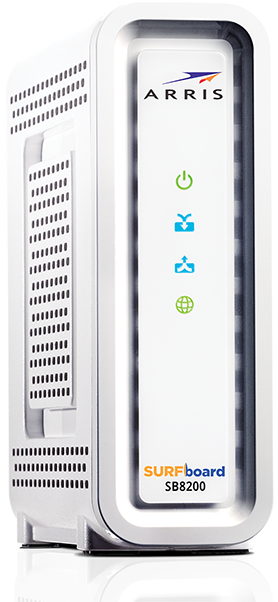
The Arris SB8200 SURFboard is the first DOCSIS 3.1 capable modem released by world leading hardware company, Arris. Other DOCSIS capable modems from Arris include the SBG8300 SURFboard and the Arris SBG7580-AC.
DOCSIS 3.1 is a newer version of cable technology, which can support faster connection speeds for functions like UHD 4K streaming and Virtual Reality gaming. Some other key features of the Arris SB8200 SURFboard modem include;
Video: Activating The Arris SB8200 SURFboard Cable Modem
Got your Arris SB8200 modem? Now to set it up and activate it. Watch the video below from Tom @ Arris to connect to your Internet service.
Video transcript: Hi. I’m Tom from ARRIS. Today I’m going to show you how simple it is to set up your new DOCSIS 3.1 SURFboard cable modem. Now this video will focus on the SB8200 but setup is generally the same for all the SURFboard cable modems listed here.
First let’s review the contents of the box. It should contain the following. The SURFboard SB8200 cable modem, the power supply, the Ethernet cable, and of course the quick start guide.
Now let’s set up your device. Make sure you have subscribed to a high speed internet service from your cable provider and that there is a live coax connection in your home.
Now from that location, connect one end of the coax cable to a live cable outlet and keep in mind the coax cable is not included in the box. Connect the other end of the coax cable to your modem and hand-tighten the connections.
Using the included Ethernet cable, connect it to one of the Ethernet land ports on the back of the device. Connect the other end to your computer. This will allow you to confirm connectivity once setup is complete and then finally, connect the power supply to your modem and connect it to the power outlet.
The LEDs will illuminate indicating power, downstream connectivity, upstream connectivity, and internet connectivity. To utilize DOCSIS 3.1, this service must be available in your area and you must subscribe to it. Otherwise, the device will operate in DOCSIS 3.0 mode. When in DOCSIS 3.1 mode, the downstream and upstream LEDs will illuminate blue. If it’s in DOCSIS 3.0 mode, the LEDs will illuminate green. Now there are two ways to activate your device. You may call your cable operator or you may try to self-activate.
If you are comfortable with the process, we recommend you try to activate the device yourself via a web browser. Connect your modem to a computer using the Ethernet cable and open up a web browser. You will be redirected to your service provider’s self-activation page and be instructed on how to complete the activation process for your device on the cable operator’s network.
If you are not redirected to the activation page or if the internet connectivity LED is not illuminated, you will need to contact your service provider for assistance.
Be ready to provide the model number, the HFC MAC ID and the serial number located on the white sticker on the bottom of the device. Now with the computer you use to activate your modem, browse through SURFboard.com to confirm you have internet connectivity. For additional information, please visit our website. Thanks for joining us.
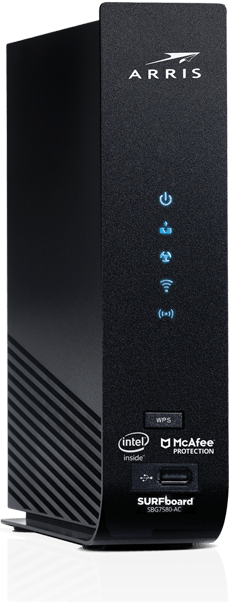
The Arris SBG7580-AC SURFboard is another DOCSIS compatible cable modem and WiFi router from the SURFboard line of products. It’s another newer product offering from the world renowned network hardware manufacturer, Arris.
Some of the main differences between the SBG7580-AC and the Arris SBG8300 SURFboard modems are;
The SBG7580-AC has a more traditional box shape, whereas the SBG8300 is an unusual flat topped pyramid
SBG7580-AC modem includes a built-in cyber security feature from McAfee, which protects all devices that are connected to the hardware
The SBG8300 supports DOCSIS 3.1, the SBG7580-AC up to DOCSIS version 3.0
The 8300 model supports higher Gigabit speeds, (up to 10 Gbps). The SBG7580-AC is “best for cable Internet speed plans up to 600 Mbps”
Arris SBG7580-AC SURFboard
Activating the Arris SBG7580-AC SURFboard Modem & Router
So you got your SBG7580-AC modem and router in the mail, or bought one online or in-store. Now to set up the hardware and activate it. Watch the video below from Arris to get connected.
Video transcript: Hi. I’m Tom and I’m going to show you how simple it is to set up your new SURFboard cable modem and WiFi router. This video will feature the SBG7580-AC but setup is similar for all of the SURFboard models listed here, with some slight variations on some older models.
Always be sure to check the quick start guide included in the box for specifics on connections and LED indicators.
First, let’s review the contents of the box. It should contain the following, this SURFboard cable modem and WiFi router, the power supply, Ethernet cable and the quick start guide.
Now let’s set up your device. Make sure you have subscribed to a high speed internet service from your cable provider and that there is a live coax connection in your home. From that location, connect one end of a coax cable to a live cable outlet. Keep in mind the coax cable is not included. Connect the other end of the coax cable to your modem and hand-tighten the connections. Using the included Ethernet cable, connect it to one of the Ethernet ports on the back of the device.
This will allow you to confirm connectivity once setup is complete. Now connect the power supply to your WiFi modem and connect it to a power outlet.
There are two ways to activate your device. You may call your cable operator or you may try to self-activate. If you’re comfortable with the process, we recommend you try to activate the device yourself via a web browser.
Once connected to your WiFi modem via Ethernet or WiFi, simply open up a web browser and you will be redirected to your service provider self-activation page. You will be instructed on how to complete the activation process for your device on the service provider’s network.
If you are not redirected to the activation page or if the internet connectivity LED is not illuminated, you will need to contact your service provider for assistance. Be ready to provide the model number, the HFC MAC ID and the serial number located on the white sticker on the bottom of the device.
With the computer or mobile device you used to activate the modem, browse to www.surfboard.com to confirm you have internet connectivity.
For more information on how to configure your WiFi network settings, check out our video library on YouTube or you can find it on our website. Thanks for joining me.
Arris SBG7580-AC Surfboard Features & Specs
Includes McAfee Secure Home Internet built in security feature
2 year limited warranty
DOCSIS 3.0 compatible cable modem & AC WiFi router
32 x down and 8 x up DOCSIS channels
4 x 1 Gigabit ports
This hardware is used by home cable providers such as Cox, Spectrum, Xfinity and other Internet Service Providers
About Fastmetrics, Inc. Building & Business ISP
Since 2002, Fastmetrics is the Bay Area’s only dedicated business ISP. We provide telecommunication services in California and the San Francisco Bay Area. Reliable service – backed by better live and local support. From install to 24-7 proactive monitoring, get treated like a VIP customer. Not a number by a faceless call center. We specialize in managed business internet and phones, dedicated high speed business fiber internet, business WiFi, SIP voice solutions / UCaaS and managed network services. We are a Microsoft and Cisco Meraki Partner. Our team are Certified Cisco Specialists, Ubiquiti Enterprise Wireless Accredited and Polycom Authorized Solution Advisors. We take care of your business network, so you can focus on growth.
Arris needs little introduction – it has been around for more than 60 years and sold more than 200 million modems worldwide. Among many achievements and pioneering moments, Arris invented digital TV, and was the first company to bring DOCSIS cable modems to the retail market. The Arris SBG8300 SURFboard is a newer modem / router offering. It stands out for its popularity, performance and unique construction shape. Arris has also recently launched a line of in-home mesh WiFi systems that support WiFi 6 connectivity, called SURFboard MAX. Arris SURFboard modems and routers are utilized worldwide and are the choice of hardware provided by various Internet Service Providers.
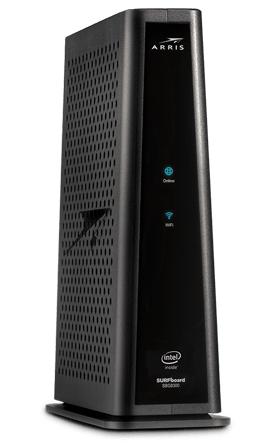
The Arris SBG8300 SURFboard Modem
How to setup the Arris SBG8300 SURFboard Modem & Router
So you’ve received your Arris SBG8300 SURFboard in the mail from your ISP, or bought one in-store. How do you set it up correctly? What’s key to connecting it to your home wireless network? Watch the below video from Arris, to start enjoying your Internet service.
Video transcript: How to set up the SURFboard SBG8300 DOCSIS 3.1 cable modem and router. This video will show how easy it is to set up and install your ARRIS WiFi cable modem and establish a secure network connection. This video will feature the SBG8300 DOCSIS 3.1 cable modem and router. Always be sure to reference the quick start guide located in the box for the specific model you are using.
First let’s open the box. Your box should contain the following. The SURFboard SBG8300 WiFi cable modem, a power adapter, Ethernet cable and a quick start guide. Before we begin, please note that cable internet service is required.
Now we will begin installation. Find a spot in your home you would like to place your WiFi cable modem. Ideally it should be easily accessible and within reach of a power outlet and a coaxial cable. Keep in mind the coaxial cable is not included in the box.
The more centrally located, the better the WiFi coverage. Connect the coaxial cable to the cable connector on the rear of your modem. Use your hand to align the threads and turn clockwise repeatedly to tighten the connector.
Finally connect the power cord to the power port and plug it into a wall outlet. Make sure that the outlet is not controlled by a wall switch. Your WiFi modem will begin powering up. Check the front LED panel as it starts up.
Start-up, software updates and provisioning by your service provider may take five to six minutes. No need to watch the unit during this process. When start-up is complete, the online LED should be lit solid. When you connect your WiFi devices to the SBG 8300, the WiFi LED will be lit. If no WiFi devices are connected, the WiFi LED will flash.
Please refer to the user guide for more information. After start-up is complete, you can test the internet connection. Connect a WiFi-enabled client device such as a mobile phone or a tablet to the SBG8300 and open a web browser.
They should redirect you to your service provider’s activation page, providing instructions on how to activate service to the modem. If at any time during this process you have any trouble, simply call your cable internet provider for assistance. Please have your service provider account information and the SN and Mac addresses from the unit label found in the quick start guide and on the bottom of the SBG-8300.
Once activated, confirm connectivity by opening a web browser on your connected client device. Type in a valid URL in the address bar such as www.surfboard.com and press “Enter”. The website should open.
If it does not, please contact ARRIS consumer support at 1-877-466-8646. Front panel LEDs are your guide to the WiFi modem’s operation. The power LED will illuminate blue when the power is on. If the power LED doesn’t light up, please check the power cord and your electrical wall outlet. The WiFi LED will illuminate green when devices are connected.
If at any time during set up you have questions about LEDs, we’re here to help. Contact the ARRIS technical support team at 1-877-466-8646. For help setting up and configuring your WiFi network, please visit our video library on YouTube. You can also visit the ARRIS support website at www.arris.com/consumers for additional resources.
Enjoy your secure, ultra high speed connection powered by ARRIS. Learn more about SURFboard networking products at our website.
Arris SBG-8300 Surfboard Features & Specs
– 10+ Gbps DOCSIS 3.1 Download Speeds
– 32 x 8 Modem Channels
– 2 downstream x 2 upstream OFDM channels
– 3×3 on 2.4Ghz and 4×4 on 5Ghz MIMO antenna configuration
– Four 1 Gigabit Ethernet Ports
– Dual-band concurrent AC Wave 2 WiFi
– Supports IPv4 and IPv6 IP addresses
– 2 Year Limited Warranty
– Compatible with most major United States Cable Providers
About Fastmetrics, Inc. Building & Business ISP
Since 2002, Fastmetrics is the Bay Area’s only dedicated business ISP. We provide telecommunication services in California and the San Francisco Bay Area. Reliable service – backed by better live and local support. From install to 24-7 proactive monitoring, get treated like a VIP customer. Not a number by a faceless call center. We specialize in managed business internet and phones, dedicated high speed business fiber internet, business WiFi, SIP voice solutions / UCaaS and managed network services. We are a Microsoft and Cisco Meraki Partner. Our team are Certified Cisco Specialists, Ubiquiti Enterprise Wireless Accredited and Polycom Authorized Solution Advisors. We take care of your business network, so you can focus on growth.
What is Ethernet and how does it work? Which type of Ethernet cable should I use? All these questions and more, answered below. Watch the videos or read the information below. Learn more about what Ethernet is and what it can do for you or your network, at home or at your business.
What Is Ethernet?
In the below video from Sunny Sun find out what Ethernet is (also known as the IEEE 802.3 standard). Sunny is an Associate Professor of Cyber Security at the University of Saint Mary in Leavenworth, Kansas. He teaches courses such as networking, cyber security, computer forensics and programming. In the below video, Sunny explains 7 key things about Ethernet, right down to where the name ‘Ethernet’ comes from.
Video transcript: Hello and this is Sunny. Welcome back. Today my topic is Ethernet. What is ether? Ether was once thought to be media carrying light throughout the universe.
Ethernet was named for IEEE 802.3 standards in a way that physical media could similarly carry data everywhere throughout the network. Ethernet refers to a family of a local area network technologies or LAN technologies that share some main features. The implementation of the network might be different. But the basic topology, frame type and network access method remain the same.
7 things you should know about Ethernet:
Ethernet is a local area network (LAN) technology and is the most widely-installed LAN technology. Ethernet has largely replaced other competing LAN technologies such as Token Ring, FDDI and ARCNET.
Ethernet technology operates at a both physical and a data link layer of the OSI model.
Star-bus topology is a standard Ethernet topology.
In terms of cabling, an Ethernet LAN typically uses a TCP/STP fiber optics and a coaxial cable.
Ethernet media access method is CSMA/CD, e/212332weCarrier Sense Multiple Access with Collision Detection.
There are many versions of Ethernet speeds; 10 megabit, 100 megabit, 1 gigabit, 10 gigabit, 100 gigabit and even more.
Last but not least, seven. Ethernet is a base band system.
Please check out my playlist “Ethernet Basics” if you want to know more about Ethernet and some concepts mentioned in this video.
What Ethernet Cable To Use – Cat 5 Cat 6 Cat 7?
With so many options and category variants available, what Ethernet cable should you use? Below is a cable explainer from ThioJoe. Joe hosts one of the most popular technology explainer channels on YouTube, with more than 2.4 million subscribers. He takes a look through the options for Ethernet cables, from cat 5 through to cat 6 and 7.
Video transcript: If you’ve ever gone to buy an Ethernet cable for any reason, you may have noticed that there are several different types to choose from. Some of them may say Cat 5, Cat 5e, Cat 6, Cat 6a. But what do all of these mean and does it really make a difference which one you get?
Well, that’s what we’re going to talk about today. So you can know what’s worth buying and potentially save some money and also I’m going to go over a real world test to see how much of a difference it makes in your own home internet.
So first of all, what the heck do the cat ratings mean anyway? Well, for Ethernet cables, that stands for category and the different numbers represent different standards and specifications for each type of cable. So you can think of them like different versions. Now the good news is that all of these cables will typically “work” since the new versions are all backwards-compatible. They all use the same RJ-45 connector, often just called the Ethernet port. But the difference in the different ones are the rated performance of each.
The Different Types Of Ethernet Cable
So let’s go over all the different types of Ethernet cables you may come across from Cat 5 all the way through Cat 7 and beyond. The first type is really common which you probably already heard of. It’s called Cat 5. However these days, when someone says “Cat 5,” they’re probably referring to the newer version of Cat 5e, but we’re getting a little bit ahead of ourselves with that.
Now a true Cat 5 cable is actually obsolete and you probably can’t even buy them anymore. A Cat 5 cable is only rated for up to 100 megabits per second at 100-meter maximum length and that’s with a 100 megahertz bandwidth.
So obviously only being rated for 100 megabits, you’re almost never going to see these anymore because usually one gigabit is kind of the minimum and if you’re still using one, you should definitely replace it. Because in addition to having a slower speed, it also might be less reliable than the new types we’re going to talk about in a second and this brings us to Cat 5e which I just mentioned and the Cat 5e stands for category five “enhanced”.
So Cat 5e is very common these days and it’s rated for one gigabit speeds at 100 meters as opposed to the original one. It’s just 100 megabit and again this has a bandwidth of 100 megahertz and this is due to the improved specs regarding twisting of the wire pairs inside, shielding and other improvements which reduce “cross talk” or the interference of the different signals, which would reduce the speed. Also a regular Cat 5 cable only required two twisted pairs of wires inside while Cat 5e uses four. So obviously it can transfer more data. A Cat 5 cable may have had four but it only required two.
So an important thing to note is that the ratings certifications are for the bare minimum specs. So it’s very possible that a cable will be capable of much more than what it’s rated for. So for example a Cat 5 cables might actually be capable of close to gigabit speeds if it’s a really high quality premium cable even though it’s older and the same will go for all of these other types. It’s just the rating is basically a guarantee. After Cat 5e came Category 6, which bumped the spec from one gigabit to ten gigabit at 55-meter length and with a bandwidth of 250 megahertz up from 100.
By the way, the bandwidth refers to the range of frequencies that the cable is able to reliably use, which explains why it would improve the speed. It has got more “space” to fit the data in a way and the Cat 6 further reduces cross talk. That’s kind of the main way to improve the speed in addition to the bandwidth using tighter wound wire pairs and may also use things like a plastic core through the middle of the cable to better separate the internal wires and things like that.
I would say Cat 6 is a good choice if you’re really not sure what type of cable you’re going to need since it probably won’t be that much more expensive depending on where you buy it and it will future-proof your cable for a while. You will probably be able to use it for the near future.
But this is especially important if the wire can’t easily be replaced. Like if you’re wiring a house for example where it would just be in the walls forever, I would definitely get at least Cat 6, probably even one of the higher-rated ones we’re about to talk about.
But if you’re just buying a general purpose Ethernet cable for your laptop or something, Cat 5e would definitely be fine as well since I doubt any of your devices right now are going to be capable of 10 gig anyway. So Cat 5e, Cat 5, 6, whatever you want. So by now you might be thinking, “OK. Surely Cat 6 is pretty much the best. I mean why would you need anything more than 10 gigabit, right?”
Well, you might be right but we’re not going to stop there. What fun would that be? Because there’s also a Cat 6a and this is one is also capable of 10 gigabit but at a longer maximum distance of 100 meters instead of 55 and it has a larger 500 megahertz bandwidth. So if you are actually creating a 10-gig network, Cat 6a will be more reliable at getting your full speed since again it has got further improved specs for reducing that cross talk. It’s just going to be more reliable.
Now finally the big daddy of the Ethernet cables for now at least is Category 7. As far as I could tell, this is the fastest type you can buy at the moment. There are other cables that like claim to be Category 8 but I don’t think they truly are. Cat 7 is also ready for 10 gigabit speeds but with a higher bandwidth of 600 megahertz, even larger than the 500, and it has got the strictest specifications for reducing cross talk such as requiring shielding between individual wire pairs in the cable as well as for the whole cable itself.
This seems to be all about improving reliability. Not necessarily the speed since it doesn’t actually improve anything about 10 gigabit, even though it probably is capable of higher speeds if you had a switch that was capable of faster than 10 gigabit on that side.
So I think Cat 7 might be best suited for extreme future-proofing, permanent wire installations for people who are not just satisfied with the best but rather want the completely unnecessary. So if you’re wiring a house and you just want to go all out, get Cat 7. All right. So we’ve learned that there are tons of different Ethernet cables you can use. But does it even really matter? I wanted to find out. So I decided to do a quick real life test.
I got three different cables, a Cat 5e, a Cat 6 and even a Cat 7, all the same five-foot length and I wanted to find out if it would make a difference when I used it with a gigabit internet connection since that’s really the fastest internet you’re going to get right now anyway. And yeah, I know I could have done a logo gigabit test but I wanted to do it this way. It’s a little bit more practical I think.
So for this, I’m simply going to connect my laptop directly to the router using each cable and to make sure there’s no limiting factors, I have the router connected to the fiber optic intake with the Cat 7 cable, so there’s no limiting agent there.
So Which Ethernet Cable Is Best?
Just looking at the three cables I used here for the test, this is the Cat 5e. It’s definitely the thinnest. Although it’s not flimsy or anything. Then the black one is the Cat 6, definitely a little bit thicker and then of course the Cat 7, there are some noticeable differences. It’s very rigid. You can tell there’s a lot more shielding in here and it has got a metal connector. So definitely way higher construction quality.
So I went and did all that. And what was the difference? Well, none at all. As I pretty much expected, with such a short distance at only five feet, all the cables were more than capable of handling the gigabit connection. I had also tested the upload speed but it was very inconsistent even between tests of the same type of cable. So I just didn’t consider that in this one.
Then out of curiosity, I did a speed test on my desktop which is plugged into the port in the wall. So in that test, I would guess it had maybe an extra 50 feet of Cat 6 cable to deal with, as opposed to the other control test, and the speed only dropped less than 10 megabits. So even with about 50 feet of Cat 6, the loss was less than one percent of the speed. So really it’s not that big a deal.
So the takeaway here is that unless you need to worry about future-proofing your connection, it really doesn’t matter what type of cable you buy. Perhaps if you have tons and tons of cables right next to each other, it’s like really electronically noisy or something and you need that shielding. The improved shielding on the better categories might help you. But in all other cases, it really shouldn’t matter at all.
Now after looking at all this, you may be wondering, “What’s the point of all these other cables if you can’t even really use them, if it doesn’t make that big of a difference in most situations?” Well, part of it is marketing since it’s easy to say you need the better cable with the higher number, which of course costs more. But there is networking hardware out there that is capable of 10 gig internet. It’s usually commercial equipment though.
However, we are starting to see some 10 gigabit consumer-grade switches out there. For example, there’s the new Asus XG-U2008 switch, which has two 10-gigabit ports. It’s only about $250, much less than what you would spend on an enterprise switch, along with a regular gigabit port.
So you could hook up your computer and maybe a network storage device to the 10-gig port. Then everything else would go into the regular gigabit ones. That way, even if none of the other devices on the network are capable of 10 gigabit, it would allow multiple one-gigabit data transfers to multiple devices simultaneously.
So the 10-gigabit NAS or storage server will be able to provide out that 10 gigabit and then it could kind of be leeched off by as many devices as you want or of course you could do a full 10-gigabit transfer between the two devices plugged in. So between the server and your computer, if they’re both plugged into that other port.
In that sort of situation though where you do have 10-gigabit capability, you would need Cat 6 or higher at least for those two 10-gigabit ports and if it’s over any kind of distance, Cat 6a would be ideal because you’re going to get that better reliability. Even if it’s not that big of a difference, you still may as well. But something tells me that not too many people are going to be using 10 gigabit for a while. So I guess from all this, my takeaway is that even the old Ethernet standards have held up surprisingly well. I mean believe it or not, the RJ-45 connector used in all these Ethernet cables was first standardized in 1987. At that time, the minimum spec was only three kilohertz bandwidth and now it’s getting into the gigahertz.
So I think it’s safe to say that the connector will probably be here for a while. It’s not going anywhere anytime soon since it seems like there’s still a lot of room for expansion. We might even see 100 gigabit. Who knows?
So I think that is it. Hopefully guys, you thought this video was pretty cool and interesting. I would love to hear what you think down the comments section. Are you still using old Cat 5 cables you didn’t really know about? It usually says it printed on the side if you’re not sure. Or do you need that full 10 gig speed? I don’t know.
I myself kind of went crazy recently. I bought a bunch of Cat 6 and Cat 7 cables since I could never seem to find any Ethernet cables when I needed them. So I’m like, “May as well get the best,” and I’m actually using the Cat 7 cables to connect all the most important stuff in my network like the router and the switches hooked up to it for a maximum performance just in case. You know, even if it doesn’t make that big of a difference, I want to have the best and remove all doubt where it might matter.
But anyway, if you guys did enjoy this video, be sure to give it a thumbs-up. I would appreciate it and if you want to keep watching, I will put some other videos right here. You can click on these even if you’re on a phone and if you want to subscribe, I make new videos every Tuesday, Thursday, Saturday and also consider clicking the bell next to the subscribe button for notifications or else YouTube might not even show you the new videos at all.
So thanks again for watching guys. I’m looking forward to hearing from you and as usual, I will see you next time. Have a good one.
Why Is WiFi Slower Than Ethernet?
High speed WiFi services such as WiFi 6 are now possible today, with compatible hardware now rolling out. But wireless is never going to beat wired for speeds. Linus over at the Tech Quickie channel created a video to explain why an Ethernet connection via a cable, will almost always be faster than a WiFi connection.
Video transcript: Thanks for watching Techquickie. Click the “Subscribe” button. Then enable notifications with the bell icon, so you won’t miss any future videos. So picture this. You just wired your desktop PC up to some uber fast internet connection which is like super exciting because surely this will be no more lagging out of your favorite game or thrilling Skype dates. Then eager to experience this kind of speed on your laptop or mobile device, you buy a fancy-looking WiFi router. You key in your password and – wait, what? Your speeds aren’t even half of what you’re getting with the wired connection. What gives?
Well, unfortunately, wireless is pretty much always going to be slower than wired. It’s a near universal truth that becomes more and more obvious the faster you try to go, even if you spend tons of money on high-end wireless gear. But then – OK, now bear with me here, because EM waves do move faster through the air than electrons do through a wire. So what is it? Well, let’s start with the most obvious, signal range.
If you’re using an Ethernet cable and you want gigabit speeds, you can have a cable run of up to 100 meters. That’s roughly as long as a football field. This is because the signal inside the cable doesn’t deteriorate appreciably until you have a longer cable run.
But radio signals flying through the air such as WiFi are much more prone to signal degradation. Unlike a physical cable which has a copper wire inside that only carries network traffic and is wrapped up in materials to shield the signal from interference, WiFi signals are just blasted everywhere, meaning they have to compete with walls, your roommate’s microwave and other network traffic.
You see, unlike Ethernet where your device gets one dedicated pipe that runs to your modem or your router, there’s only so much spectrum available for your WiFi enabled laptop and your phone and anything else. What that means is that your device will often be broadcasting on the same frequency or channel as others, which can lead to more interference that can further degrade the signal and give your router more work to do to sort it all out.
But OK, hold on a second Linus. You can hook up lots of wired devices to a router as well. So doesn’t your router have to figure out where all those different signals are supposed to go? Yes. But WiFi and Ethernet have different strategies to combat packet loss, which is exactly what it sounds like, when a chunk or a packet of data doesn’t reach its destination.
Oftentimes this can occur due to a collision, when two devices try to transmit it at precisely the same time. If this happens, the packets have to be resent. So the way that an Ethernet connection avoids collisions is that once the sender determines that its path to the destination is clear, it sends the packet immediately. If the path is busy, the sender will send the data as soon as the path is clear again. WiFi on the other hand introduces a small delay once the path becomes clear.
The idea is that since a wireless router can’t magically detect a collision in midair, this delay reduces the risk of collisions. But as it does so, it also adds more latency. And although many leaps in WiFi technology have been made over the years, it still resembles much older school communications protocols in one important way. It is half-duplex, meaning that a WiFi gadget’s antenna can only be sending or receiving at any given moment, not both.
Now full duplex wireless is in the works but it’s still experimental and suffers from its own special kind of interference that results from the antenna trying to deal with both inbound and outbound signals at the same time. By contrast, Ethernet has been full duplex for quite some time now as it’s not difficult to simply put one wire in for transmitting data and another one for receiving it on the same cable.
So all other things being equal, don’t be surprised if your Wi-Fi connection always seems just a bit slower even if you do walk around with your smartphone neurotically duct-taped directly to a router.
Just please, please go faster. Speaking of going faster, if you’re a freelancer or a small business owner and you want to get your work done faster, check out FreshBooks. FreshBooks is the cloud accounting software that’s designed for the way you want to work and it’s the simplest, easiest way to be more productive, more organized and perhaps most importantly, get paid faster.
You can create and send professional-looking invoices in less than 30 seconds. You can set up online payments with just a couple of clicks to get paid up to four days faster and you can see when your client has seen your invoice to put an end to the guessing games. So don’t take my word for it. Try out FreshBooks for free. They’ve got a 30-day free trial available to our viewers down below and then guys, when you do sign up, that’s www.FreshBooks.com/Techquickie. Make sure you enter “Techquickie” in the “How did you hear about us?” section.
So thanks for watching, guys. Like, dislike. Check out our other videos. Don’t forget to leave a comment if you have suggestions for future As-Fast-As-Possibles. We do read those things, you know, and subscribe because if you don’t subscribe, bees, bees will eat your hair. They do that, you know. It’s not a misinformation. We’re a tech channel. People aren’t expecting biology factual accuracy.
About Fastmetrics, Inc. Building & Business ISP
Since 2002, Fastmetrics is the Bay Area’s only dedicated business ISP. We provide telecommunication services in California and the San Francisco Bay Area. Reliable service – backed by better live and local support. From install to 24-7 proactive monitoring, get treated like a VIP customer. Not a number by a faceless call center. We specialize in managed business internet and phones, dedicated high speed business fiber internet, business WiFi, SIP voice solutions / UCaaS and managed network services. We are a Microsoft and Cisco Meraki Partner. Our team are Certified Cisco Specialists, Ubiquiti Enterprise Wireless Accredited and Polycom Authorized Solution Advisors. We take care of your business network, so you can focus on growth.
WiFi 6: The Latest Standard In Wireless Technology
WiFi 6 (or Wi-Fi 6 as designated by long standing Fastmetrics customer, Wi-Fi Alliance), is the latest and greatest when it comes to wireless technology standards. This new Wi-Fi standard is a glimpse into the future of wireless technology, upgrades and capabilities. It can provide super fast wireless connection speeds, for routers that are compatible with the standard, also designated as 802.11ax. In addition to some incredible speeds that WiFi 6 supports, it also handles multiple wireless device connectivity, in a more efficient manner. All over a single WiFi network.
You may be aware, but wireless connectivity becomes saturated easily, is prone to inference across channels and the best frequency selection is not often known, for a particular environment. This can cause issues and degrade wireless signal strength and experience. Typically, this makes channel assignments and frequency choices important, to allow users to connect to a higher quality signal.
We talk about common WiFi issues and troubleshooting in these posts;
However, WiFi 6 solves some of the above issues, as explained below. So, is WiFi 6 worth exploring for your business or home? We’ve got some insights from popular videos on the subject, to find out.
Video: What Is WiFi 6 & How It Can Actually Benefit Us
In the below video from TheUnlockr, David was invited to check out WiFi 6 in San Francisco from leading chip set manufacturer, Qualcomm. Check out his channel for more great tech videos.
Video transcript: There has been talk about the next generation of Wi-Fi called Wi-Fi 6 a lot lately. Enter WiFi 6, the new standard of Wi-Fi. Now while it might seem like WiFi is just feeling left out while everyone is talking about 5Gs, the next level upgrade of the cellular networks and it just wants to feel like it’s getting an upgrade too, it actually is a very clever new standard for how WiFi works, how it can get faster and probably more importantly how it can handle the massive influx of new WiFi connected devices that we just keep adding to our networks.
Qualcomm, one of the top chip set producers in the world, invited me out to San Francisco not too long ago to see what they were doing with WiFi 6. So in this inaugural episode of Decodr where I break down a new piece of tech every week, let’s talk about what WiFi 6 is and how it can actually benefit us.
First off, WiFi 6 is now actually called Wi-Fi 6 because the Wi-Fi Alliance, (the industry body that kind of regulates all of this), decided to kind of change the names to help people understand them better. So WiFi 6 is the new name for 802.11ax. WiFi 5 is the new name of 802.11ac, etc, etc.
Now each of these new standards basically is when people like VK Jones here, the VP of Technology at Qualcomm and considered the godfather of Wi-Fi, and other industry professionals get together and discuss what specific features the next generation of Wi-Fi will need to have. Once they all come to an agreement, they will ask us then what manufacturers must adhere to in order to have their WiFi devices able to use the new standard. For WiFi 6, there are thousands of items mentioned in the actual standard, which don’t worry we won’t get into. We can actually really kind of sum it up in five major features.
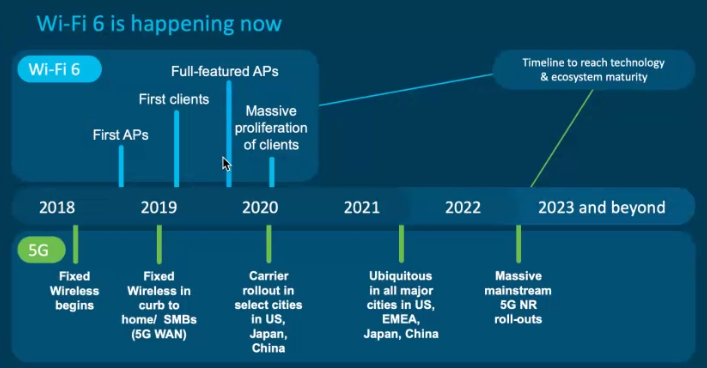
5G and WiFi 6 timelines. Image: Cisco industry standards.
5 Major New Features: WiFi 6
First up is MU-MIMO, which stands for Multiple User, Multiple Input, Multiple Output. What it’s trying to say with all those multiples in there though is that it’s a protocol that allows multiple users to send data at the same time, up to eight in WiFi 6 and Qualcomm has even gone above and beyond the standard requirements and have chip sets that are capable of 12 users at a time.
Now this doesn’t mean that only eight devices are talking to the router in total. It means that every packet their WiFi 6 router sends out, which it does multiple times per second by the way, eight devices can receive them at once and this can happen with a different eight devices during the next transmission if needed. Maybe another eight after that or a combination of the new devices and some of the same, etc. So when you think about how fast the signal actually sends out, it ends up being a ton more devices they get to talk every minute for example, instead of waiting their turn like with previous versions of Wi-Fi.
Now in the standard as it is right now, devices only need to be able to have MU-MIMO support on the downloads. So when the router sends info out up to eight devices or twelve again with Qualcomm chip sets, can receive data at once. But Qualcomm actually showed us that they have MU-MIMO for uploads as well on their chip sets and that’s up to twelve devices transmit data back to the router at once as well, further increasing the capacity and the speed.
The next thing that also helps with the capacity and speed of the WiFi 6 network is OFDMA or Orthogonal Frequency-Division Multiple Access. Which is a long way of saying that during those transmissions from the router, each packet of data can actually contain information from multiple devices. So think of it this way. If MU-MIMO basically opens up eight lanes of traffic for eight trucks to go out all at a time, OFDMA then lets each of those trucks split up their payload and drop it off to different devices on the way, without having to load up another truck and send it again just to that device.
How Much Faster Is WiFi 6?
OK. So yes, there is also a speed improvement. Don’t worry. Thanks to a newer version of QAM or Quadrature Amplitude Modulation, this technology is used to determine how much data is in each packet being sent to and from the router. In the case of WiFi 5, that was using 256 QAM whereas WiFi 6 can use 1024 QAM going from eight bits of data per packet to ten bits of data, giving us an increase in speed of about 25 percent.
Now the last thing that also helps a lot with the capacity of the network in WiFi 6 is target wake time. This feature basically allows the router to talk to each device and negotiate how long the device should be awake for it to receive and send data and then how long in between those times it should go to sleep. The router then will only send data during the awake times which drastically reduces unnecessary chatter on the network, freeing up transmissions to carry actual more important data and not this management data and as a side benefit, it actually improves the battery life for any WiFi 6 devices on the network as well.
Last but not least, the new WPA3 security encryption is here now and it is a lot more secure than WPA2 which is what most of us are currently using. In WiFi 6 though, WPA3 support will be actually required for the devices to be able to be compatible.
Now these major changes along with the minor ones that we didn’t talk about are what are going to make WiFi 6 faster but also more importantly, are going to make sure that it’s more efficient when it has a lot of users on the network. Honestly, it’s one of the biggest changes we’ve seen in Wi-Fi in a while and that’s why there’s so much talk about it lately. It’s not just a speed boost. It’s something we actually need to make sure that Wi-Fi is future-proofed.
Now something to know in closing, these are just standards and essentially bare minimums to be included in WiFi 6. But not all WiFi 6 is created equally. As I mentioned, Qualcomm has gone above and beyond the standard with their up-link support in MIMO and OFDMA and in increasing the number of users on their Qualcomm Networking Pro series of chip sets, to 1500 simultaneous clients, to ways to configure radios for OEMs that require less hardware components, etc.
So thanks again to Qualcomm for showing me around their WiFi 6 event and also showing me what they’re doing with WiFi 6. Hope you guys enjoyed that. Let me know in the comments below and also if there’s something that you would like me to decode, let me know in the comments below about that as well. I will see if I can try to get it into a new episode. As always though, regardless, thanks for watching and I will see you next week.
Just How Fast Can WiFi 6 Go?
In this next video from Linus Tech Tips, these guys do some real world testing with a Cisco Meraki WiFi 6 compatible access point and the Samsung Galaxy S10 Series. Check out the video and then the commentary below that.
Video transcript: Every once in awhile it feels like the stars just aligned perfectly for me. We were literally right in the middle of planning a WiFi upgrade so that we could test the brand new WiFi 6 capabilities of the Samsung Galaxy S10 series when our buds over at Cisco reached out to sponsor a video explaining the benefits of WiFi 6. So we were like, “Ah, so… yeah.” And you know that beastly new access point? Well, I think to really show off the benefit of WiFi 6, we probably need a couple of those. That OK? Yeah? So done. So today’s video then is all about what WiFi 6 is, why you might care and when you can expect widespread adoption. And we’re also going to take it for a test drive with the shiny new Galaxy S10 Plus. So strap in because this is going to be fun.
What Stays The Same With WiFi 6?
While our APs are being installed, let’s talk about what is the same. Physically, the hardware for WiFi 6 is actually quite similar. So on the client side, cellphone and other device manufacturers can continue to lean on the antenna design experience that they’ve gained from previous generations of WiFi, with even the battery consumption of new WiFi 6 chip sets only expected to increase during times of continuous high speed data transfer. And even then that’s only because the data rate is higher. So, nothing really changes there. As for the deployment, that’s basically the same. Remember your best practices for AP positioning, run your Ethernet and wire everything up to your network switch. Because WiFi 6 is backwards compatible, any legacy clients on the network won’t even know the difference.
What Has Changed With WiFi 6?
Now, let’s talk about what is different, which is basically everything starting with even the name. WiFi is undergoing a much needed and surprisingly sensible re-branding right now from 802.11 something, something. For those curious by the way, this generation was going to be called 802.11ax to simple number generations. So, AC becomes 5, N becomes 4 and so on and so forth with these little icons that are designed to inform consumers which generation is supported by both their client and the AP that they happen to be connected to.
Is WiFi 6 Deployed Differently?
Next up is the deployment. Yeah, OK, it’s not quite the same. So, WiFi 6 handles more clients and more cluttered environments better. So you might not actually need as many APs which is nice, but watch out because you’re not going to be saving a buck here. Each of those access points could be handling multiple gigabits of data per second across literally hundreds of clients. So, your commodity gigabit PoE switch – your commodity Gigabit PoE switch isn’t going to cut it anymore.
So, we’re moving to this Meraki MS355-24X2. Its 24 multi gigabit ports could actually be fully loaded with MR55 access points, thanks to its beefy 740 watt power supply. And this thing is rated at up to 640 Gigabit per second of switching capacity. And all of that is important because even though it’s rated at a mere 39% faster throughput, so about 600 megabit per second versus 433 on a single 80 megahertz 5 gigahertz channel. Thanks to packing more data into each payload, WiFi 6 has some truly game changing features when it comes to multi client access that are going to result in far higher overall data rates and less waiting.
So first of all, access points can be configured with up to an 8 by 8 antenna configuration so that is 8 for sending and 8 for receiving. And on top of that, WiFi 6 supports up to 8 concurrent downlink streams with multi-user MIMO. That is a huge increase over the four concurrent down extremes that was supported with WiFi 5. So this widening of the highway so to speak is a big part of what’s going to make Gen 6 so critical to making WIFI usable in large venues like sports arenas and crowded concert halls.
But it’s not even close to the entire picture. The next huge innovation for large scale deployments was actually borrowed from cellular networks. With WiFi 6, the band or the frequency range that would have made up a traditional channel can be split using a technique called Orthogonal Frequency-Division Multiple Access or OFDMA. So, you know how one of the best pro tips for anyone living in an apartment is to use a scanner to see what channels your neighbors are on and then manually switch over to a different one? Well, forget about it. OFDMA allows each band, be it 20, 40 or all the way up to 160 megahertz to be split up into multiple chunks, as many as 78 sub channels and each one of those can be allocated to a separate client.
Now obviously, to make all of this work, the access point needs to get a little bit smarter. Fortunately it did. With WiFi 6, an AP can negotiate what are called deterministic connections, allowing it to exercise a great deal of control over the connected clients and how they’re allowed to behave.
So first, a client gets dynamically assigned however many channels or sub channels can be spared at that moment. Then things get even crazier, each client gets a schedule for when it’s allowed to transmit and receive data. Now, hold on a second I know that in the computing world, scheduling a data transmission usually means increased latency which is one of the biggest issues with WiFi today. But in practice, what this means is less collision mitigation overhead which means that there’s actually less waiting around. Think of it kind of like a perfectly executed zipper merge on the highway, so it will actually reduce latency. That means yes friends, gaming on WiFi without leg spikes could actually be a thing with WiFi 6. Go figure.
Another fun feature of deterministic connections is that they can be used to save power. So you know you’re connected smart light switch, your Amazon button and your asset tags, etc, etc, etc. Right now, they waste a ton of power, constantly checking in with the network. “Hey, you got anything for me? No? OK. How about now? Got anything for me? No? OK.” Well, with scheduled check-ins called target wake up time, your devices can check-in far less frequently, dramatically increasing their battery life.
Better Specs, But What Else Is Cool About WiFi 6?
The coolest thing about WiFi 6 though is not the techie specs, as much as I personally get really amped on that stuff. Rather, it’s the different experiences that it enables. Like have you ever tried to stealthily have a video chat at the back of a lecture hall or upload a video to YouTube from a large event? It’s a total mess. And I mean even something as stupid as breaking for lunch during a conference can absolutely crush your mobile experience as everyone jumps on Facebook at exactly the same time.
Well, thanks to everything I’ve talked about already and actually a whole host of other new features, including better beam forming, spatial frequency reuse and dynamic fragmentation which makes better use of the available spectrum – oh man, actually I forgot to mention that too, down the line, we’re even getting more spectrum in the 5 to 6 gigahertz range. That’s going to be sweet. Anyway, the point is, with all of this new tech, this is not like an incremental, generational evolutionary improvement. And you could even argue that this is the biggest fundamental change that we’ve seen yet for WiFi. And I, for one, am stoked.
When Will WiFi 6 Be Widely Available?
But, there’s always a “but”, isn’t there? The one the buzzkill today is that while WiFi 6 is backwards compatible, you’re going to have to wait a little while longer for the kick ass experience that I’ve talked about here. Because the promises of WiFi 6 can only be fully realized once client devices with support for these new features start to overtake their legacy counterparts.Now the good news is that at least they’re already showing up.
How Fast Is WiFi 6? Speed Test Demo
So, all that’s left in this video then is to take our S10 Plus for a quick test drive. Now, one problem I have is that we don’t have a couple hundred of these so I’m not going to be able to do like a mega client test or anything like that but we can at least make sure that everything is working properly here in the office with a quick speed test. So, without further ado, let’s see just how fast we can make this go.
So, the first thing that I noticed just connecting to our new access point is that, remember those little icons I told you guys about? It’s right there at the top of the phone, WiFi 6, so you’ll know that you’re negotiating your link using the correct generation the technology. So that’s pretty cool. Then, for us, remember, we just upgraded to 10 gigabit internet, so as long as we can find a speed test server that can take the burn then all we got to do is run a simple speed test here and have a look at what kind of speeds we can get.
And I have never seen anything like this that upload speed 800 megabit per second. Guys, not only is this WiFi, this is WiFi on a mobile device. This is a 2 by 2 antenna configuration. That is real world speeds of like 800 – we’re getting close to if I actually plug the USB Type-C dongle into my phone and plug it into the wall. That’s absolutely incredible. And like I said before, it is absolutely just the tip of the iceberg.
So thanks for watching, guys. Thanks to Cisco for sponsoring this video. If you guys disliked it you can hit that button but if you liked it, hit Like, get subscribed or maybe consider checking out where to buy the stuff we featured, especially if you’re a small business owner at the link in the video description. Also down there is our merch store which has cool shirts like the one I’m wearing as well as our community forum which you should totally join.
About Fastmetrics, Inc. Building & Business ISP
Since 2002, Fastmetrics is the Bay Area’s only dedicated business ISP. We provide telecommunication services in California and the San Francisco Bay Area. Reliable service – backed by better live and local support. From install to 24-7 proactive monitoring, get treated like a VIP customer. Not a number by a faceless call center. We specialize in managed business internet and phones, dedicated high speed business fiber internet, business WiFi, SIP voice solutions / UCaaS and managed network services. We are a Microsoft and Cisco Meraki Partner. Our team are Certified Cisco Specialists, Ubiquiti Enterprise Wireless Accredited and Polycom Authorized Solution Advisors. We take care of your business network, so you can focus on growth.